
Logs and support
This page is for the administrator who gathers information when BioTrack is not working as expected. It covers Settings → About & support, where logs are kept, and how to share them safely.
About BioTrack
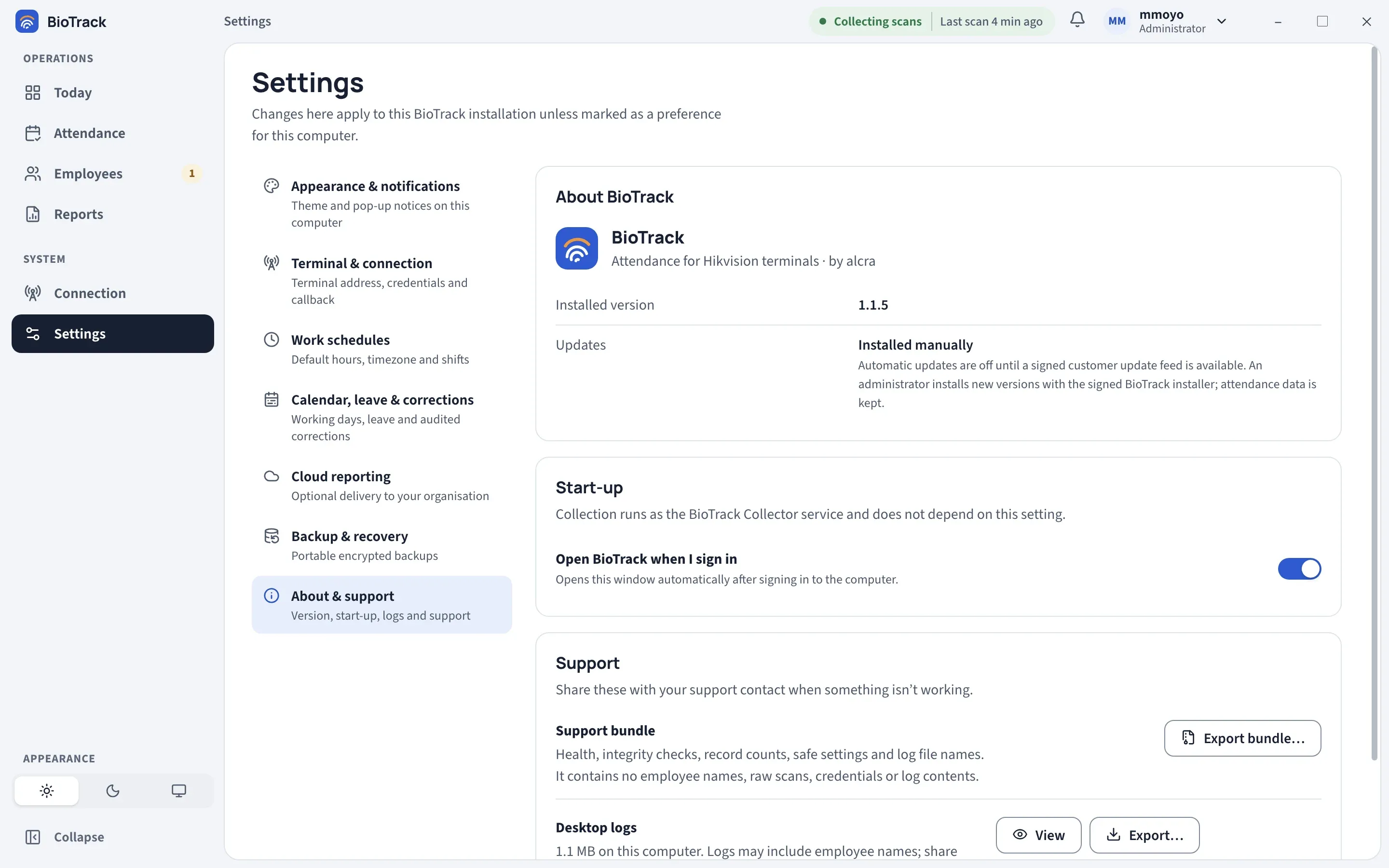
Section titled “About BioTrack”The About BioTrack group shows the Installed version and the Updates status. Updates are installed manually until the BioTrack portal serves them, so it shows Installed manually. See Updates and uninstall.
Start-up
Section titled “Start-up”Open BioTrack when I sign in opens the BioTrack window automatically after you sign in to Windows. Collection does not depend on this setting: the BioTrack Collector service runs whether the window is open or not. Only an administrator can change it.
Support bundle
Section titled “Support bundle”Start with the support bundle when you report a problem. It is designed to be safe to share.
- Go to Settings → About & support.
- Under Support bundle, select Export bundle… and choose where to save it.
- BioTrack shows Support bundle saved with the file path and its SHA-256 checksum. Record the checksum and send it with the file so the recipient can confirm it arrived unchanged.
The bundle is a JSON file produced by the collector service. It contains:
- current collector health and the latest 200 health history samples
- database integrity check results, applied migrations and record counts per table
- safe configuration facts (for example whether a terminal, callback and cloud reporting are configured)
- names, sizes and dates of log files and crash evidence files
It does not contain employee names or rows, raw scans, credentials, log contents or crash error text.
For a quicker summary, Copy diagnostic details on the Connection page copies a short status snapshot with no employee names. See Terminal and connection.
Desktop logs
Section titled “Desktop logs”Desktop logs are the logs written by the BioTrack window on this computer. The group shows how much space they use.
| Action | What it does |
|---|---|
| View | Opens a viewer listing the log files. Choose one to see its last 200 lines. |
| Export… | Saves the logs from the last 7 days to a text file. Administrators only. |
| Delete old | Deletes logs older than 7 days, after you confirm. Recent logs are kept for support. This cannot be undone. Administrators only. |
Where logs are kept
Section titled “Where logs are kept”| Logs | Location |
|---|---|
| Desktop window logs | %LOCALAPPDATA%\BioTrack\ui-logs (per Windows user) |
| Collector service logs | %ProgramData%\BioTrack\logs |
| Service wrapper logs | %ProgramData%\BioTrack\service-logs |
| Network setup helper log | %ProgramData%\BioTrack\service\network-setup.log |
| Crash evidence | %ProgramData%\BioTrack\service\crash-evidence |
| Setup log | A temporary file in the installing administrator’s %TEMP% folder; setup shows its path |
Folders under %ProgramData%\BioTrack are readable only by Windows administrators and the collector service. See Data locations for the full layout.
Handling an incident
Section titled “Handling an incident”If attendance appears to be missing, duplicated or wrong, or BioTrack keeps failing:
- Stop changing settings. Write down the time it started (local time) and what you saw.
- Export a support bundle and record its SHA-256 checksum.
- Keep the evidence: logs, the latest backups and their manifests, the terminal model and firmware, and any error messages or screenshots.
- Leave the PC and the terminal powered on unless you need to isolate them.
- Contact your support provider and share files only through your organisation’s approved secure channel.
Never email or upload the database, the database key (attendance.db.key), the collector’s local channel secret (collector-rpc.key), passwords, or biometric data. Do not edit the database with other tools.
If a BioTrack administrator password is lost, there is no master password or cloud recovery. Contact your support provider for an approved recovery procedure; do not try to edit the user accounts in the database.