
Accounts and sign-in
This page explains who can sign in to BioTrack and what each role can do. It is for administrators and for anyone who signs in to BioTrack day to day.
Three separate sets of credentials
Section titled “Three separate sets of credentials”BioTrack involves three different logins. Keeping them apart avoids most sign-in confusion.
| Credentials | Used for | Where they live |
|---|---|---|
| BioTrack account | Signing in to the BioTrack window. | In BioTrack’s encrypted database on this PC. |
| Terminal username and password | The collector signing in to the Hikvision terminal. | Saved protected on this PC. BioTrack never shows the saved password. |
| Windows account | Signing in to the PC, and approving administrator prompts. | Windows. |
BioTrack accounts are local to this installation. They are not connected to Windows, the terminal or any cloud service, and they are never uploaded.
Every BioTrack account is either an Administrator or an Operator. Your username and role appear in the top-right corner of the window.
| Task | Operator | Administrator |
|---|---|---|
| View Today, Attendance, Employees, Reports and Connection | Yes | Yes |
| Export attendance and reports | Yes | Yes |
| Mark new employees as reviewed | Yes | Yes |
| Change their own appearance and notification preferences | Yes | Yes |
| Sync employees from the terminal and assign schedules | No | Yes |
| Change work hours and shifts | No | Yes |
| Record corrections, holidays and leave (Calendar, leave & corrections) | No | Yes |
| Change terminal and callback settings | No | Yes |
| Set up or change Cloud reporting | No | Yes |
| Create and restore backups | No | Yes |
| Restart the listener, export support bundles, manage logs, change start-up behaviour | No | Yes |
Operators still see most settings pages, so they can check how BioTrack is set up, but the controls are read-only and marked, for example Only an administrator can change terminal settings. The Calendar, leave & corrections section is hidden from Operators. BioTrack also enforces these rules in the collector, not only in the window.
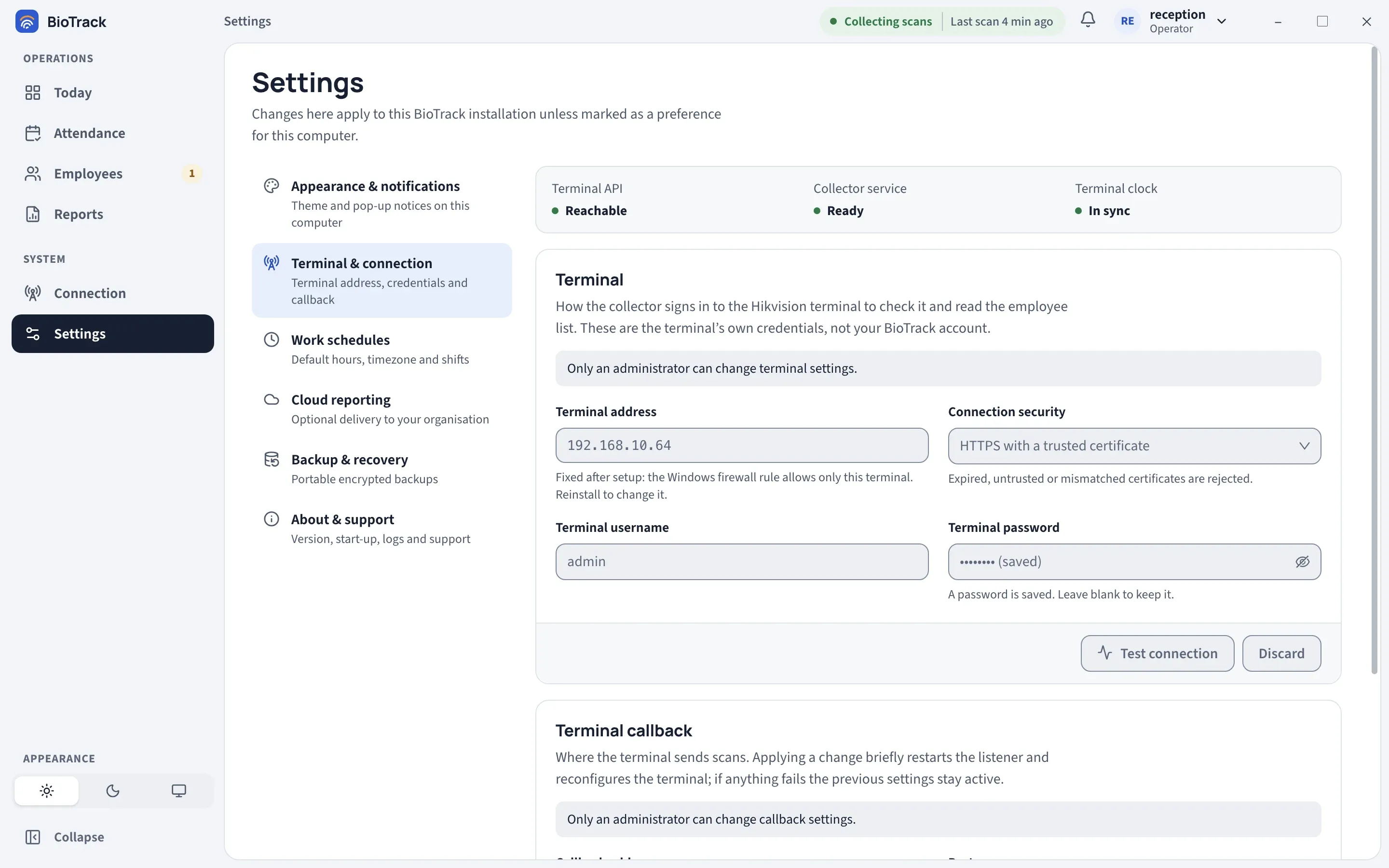
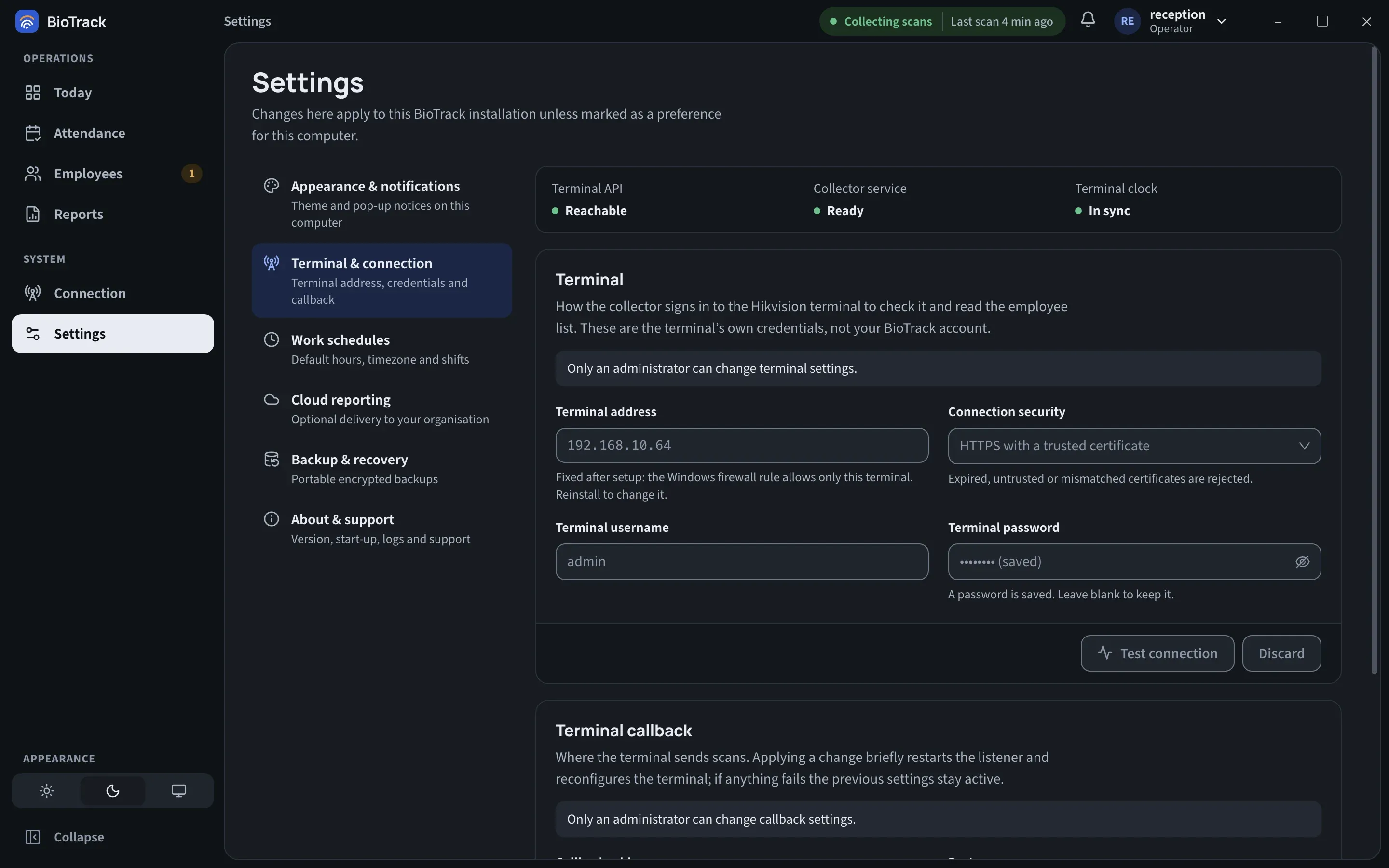
The first Administrator is created in the setup wizard.
Signing in
Section titled “Signing in”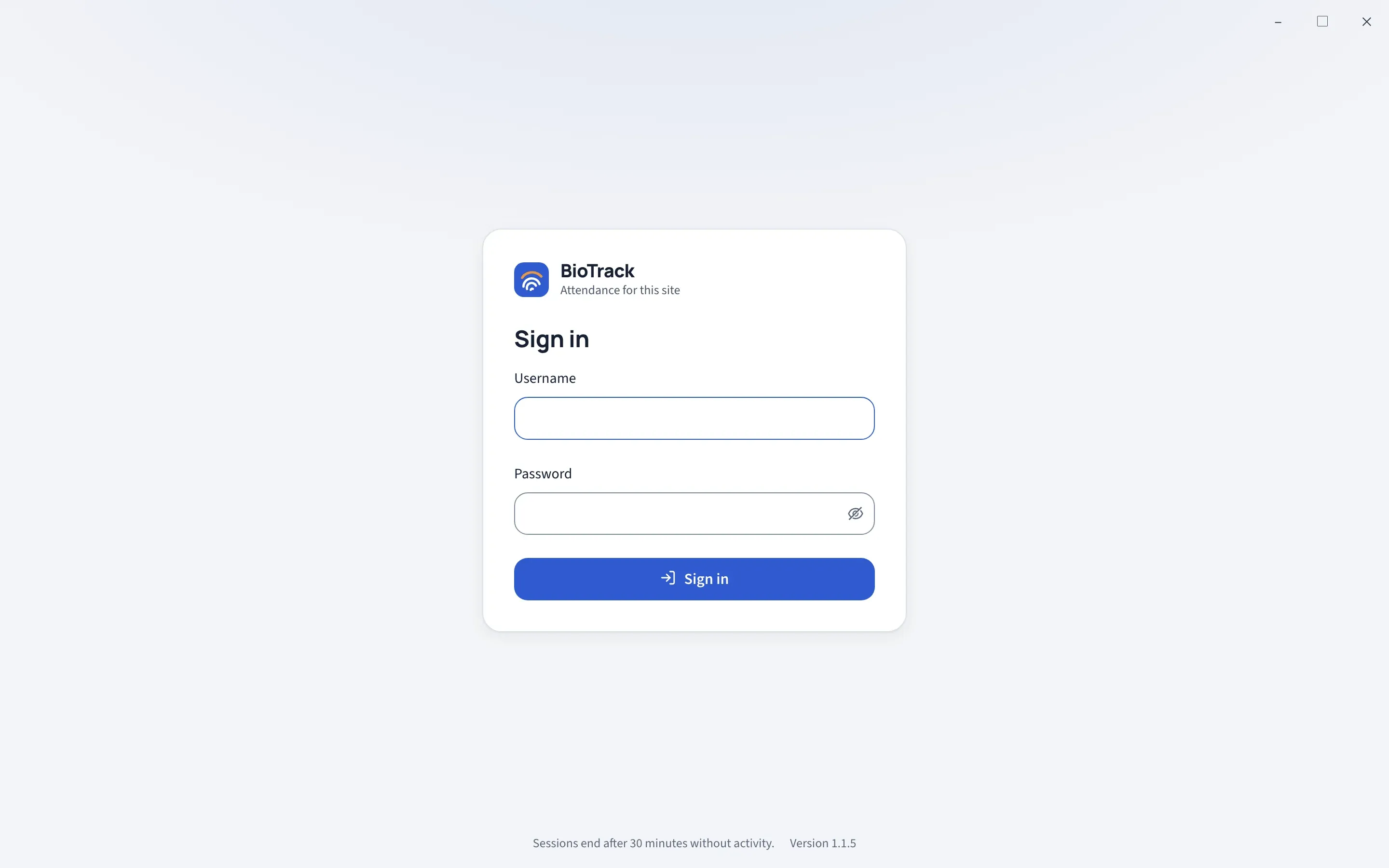
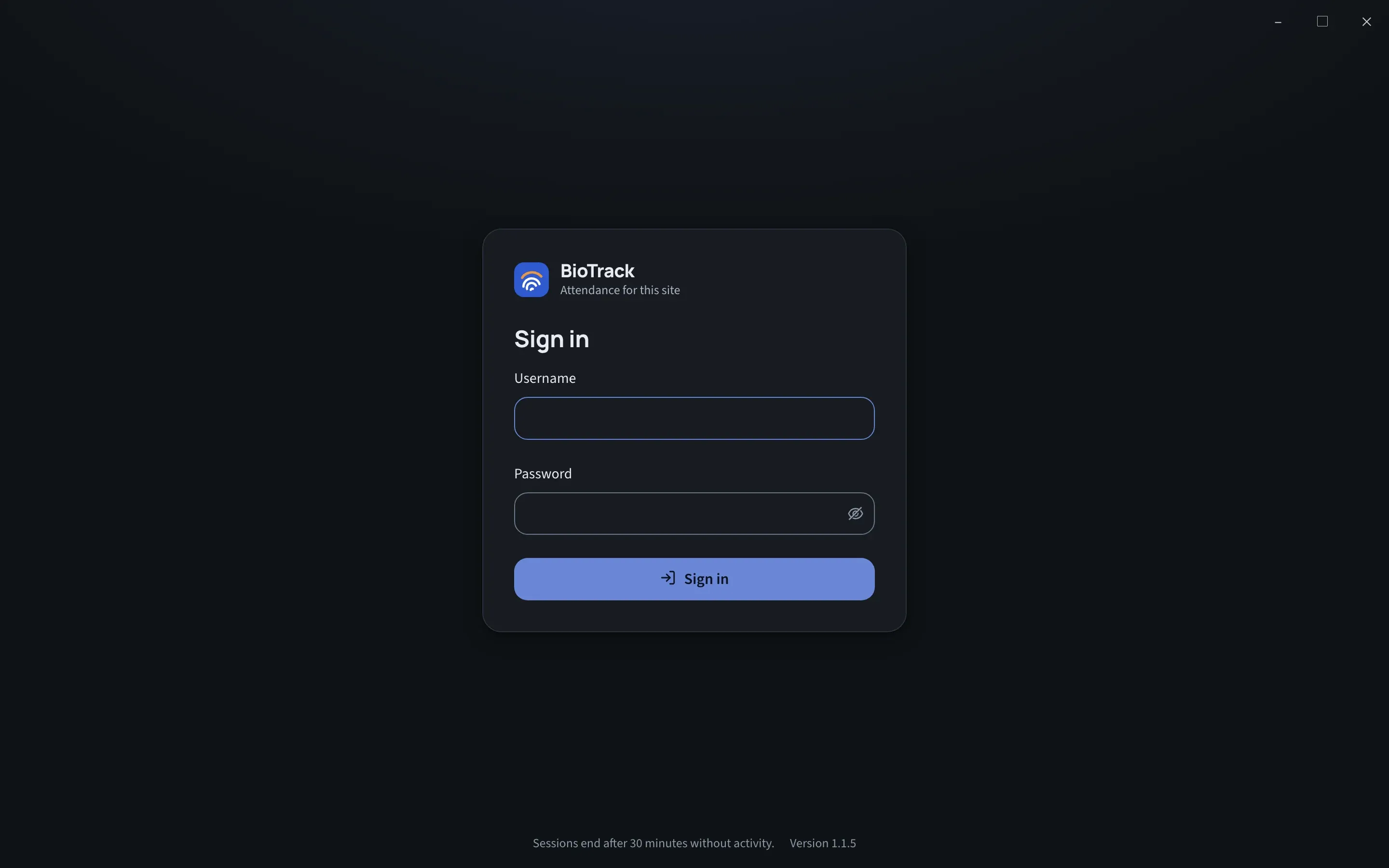
- Open BioTrack from the Start menu or desktop shortcut.
- Enter your Username and Password.
- Select Sign in.
Things to know:
- Sessions end after 30 minutes without activity. Background updates don’t count as activity. When a session ends you see Your session ended; sign in again to continue.
- Closing the window always signs you out. Collection carries on in the background.
- To sign out yourself, open the account menu in the top-right corner and select Sign out.
- Only the Windows account that installed BioTrack, and Windows administrators, can open it on this PC. Anyone else sees BioTrack access was denied.
When sign-in fails
Section titled “When sign-in fails”| Message | Meaning | What to do |
|---|---|---|
| Couldn’t sign in, “Invalid username or password” | The username or password is wrong. | Check Caps Lock and try again. BioTrack doesn’t say which one was wrong. |
| ”Too many login attempts. Try again in … seconds.” | After more than four wrong passwords for a username within an hour, BioTrack makes you wait before the next attempt. The wait grows with each further failure, up to 15 minutes. | Wait for the time shown, then try again carefully. |
| Collector unavailable | BioTrack can’t reach the collector service. Your username is kept. | Try again in a moment. If it persists, see Connection states. |
Passwords
Section titled “Passwords”- BioTrack passwords must be at least 12 characters. Very common passwords are refused.
- Use a passphrase you don’t use anywhere else, and store it in your organisation’s password manager.
- When a password is changed, that user’s other open sessions are ended.
If the administrator password is lost
Section titled “If the administrator password is lost”BioTrack has no master password and no reset link, and Alcra cannot look up your password. This is deliberate: nobody can get into your attendance data by knowing a back door.
If the only administrator password is lost:
- Stop. Attendance collection is not affected and continues in the background.
- Do not try to edit BioTrack’s files or database. That can make the data unrecoverable.
- Contact your Alcra support contact to agree a recovery procedure.
Passkey-approved recovery is planned for the BioTrack portal.