
Notifications and appearance
This page shows how to make BioTrack comfortable to work with on your computer: light or dark colours, a narrower sidebar, and how many pop-up notices you see. These are preferences for the computer you are using. They do not change anything for other users or affect how scans are collected.
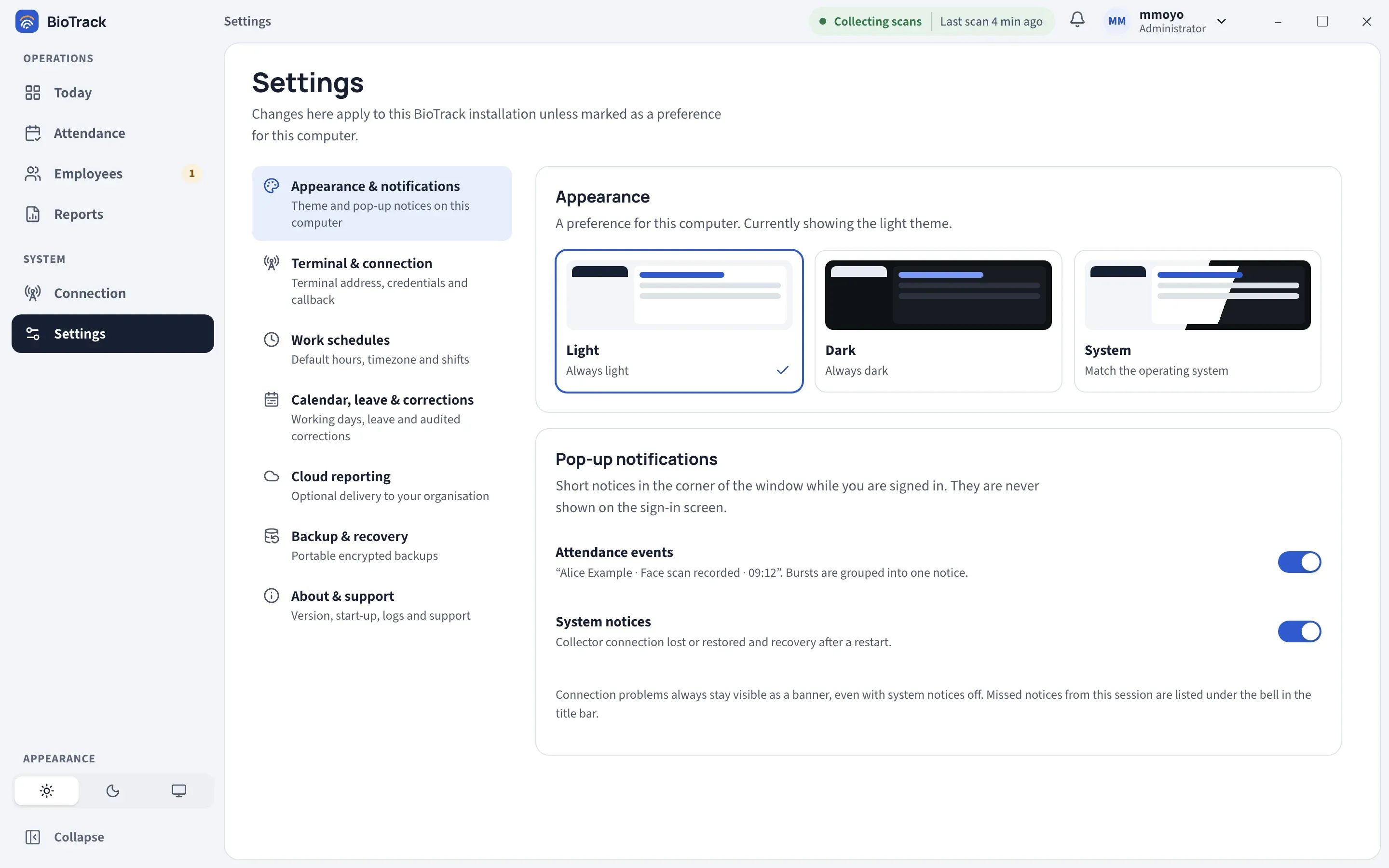
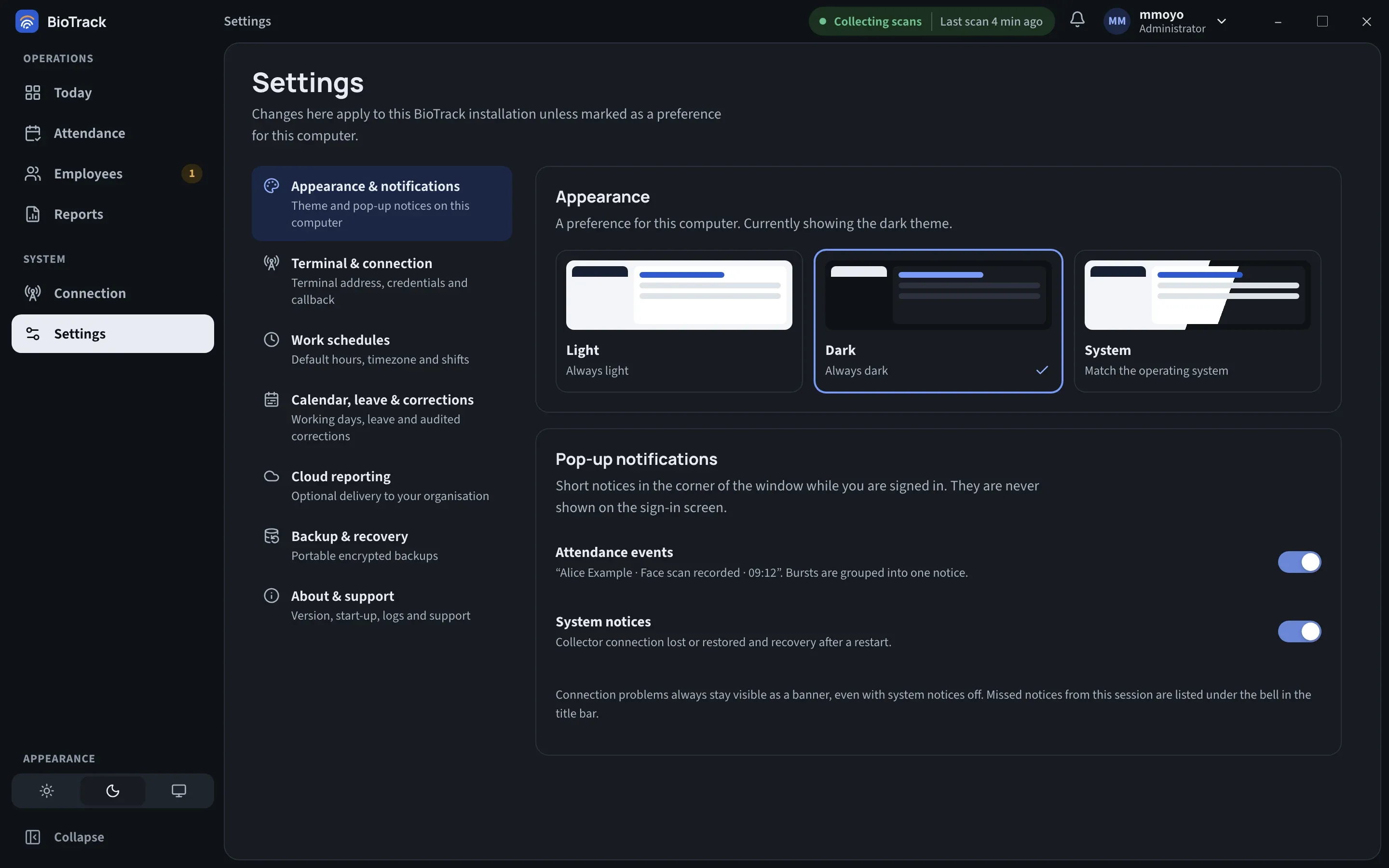
Light, Dark or System
Section titled “Light, Dark or System”At the bottom of the sidebar, under Appearance, there are three buttons:
- Light (sun) — always light.
- Dark (moon) — always dark.
- Match system (screen) — follows the Windows light or dark setting.
The change applies straight away. You can make the same choice under Settings → Appearance & notifications, where the options are labelled Light, Dark and System and the page tells you which theme is showing now.
Collapsing the sidebar
Section titled “Collapsing the sidebar”Select Collapse at the bottom of the sidebar to shrink it to icons only, which gives tables more room. Hover over an icon to see its name. Select the same button again to expand the sidebar. BioTrack remembers your choice on this computer.
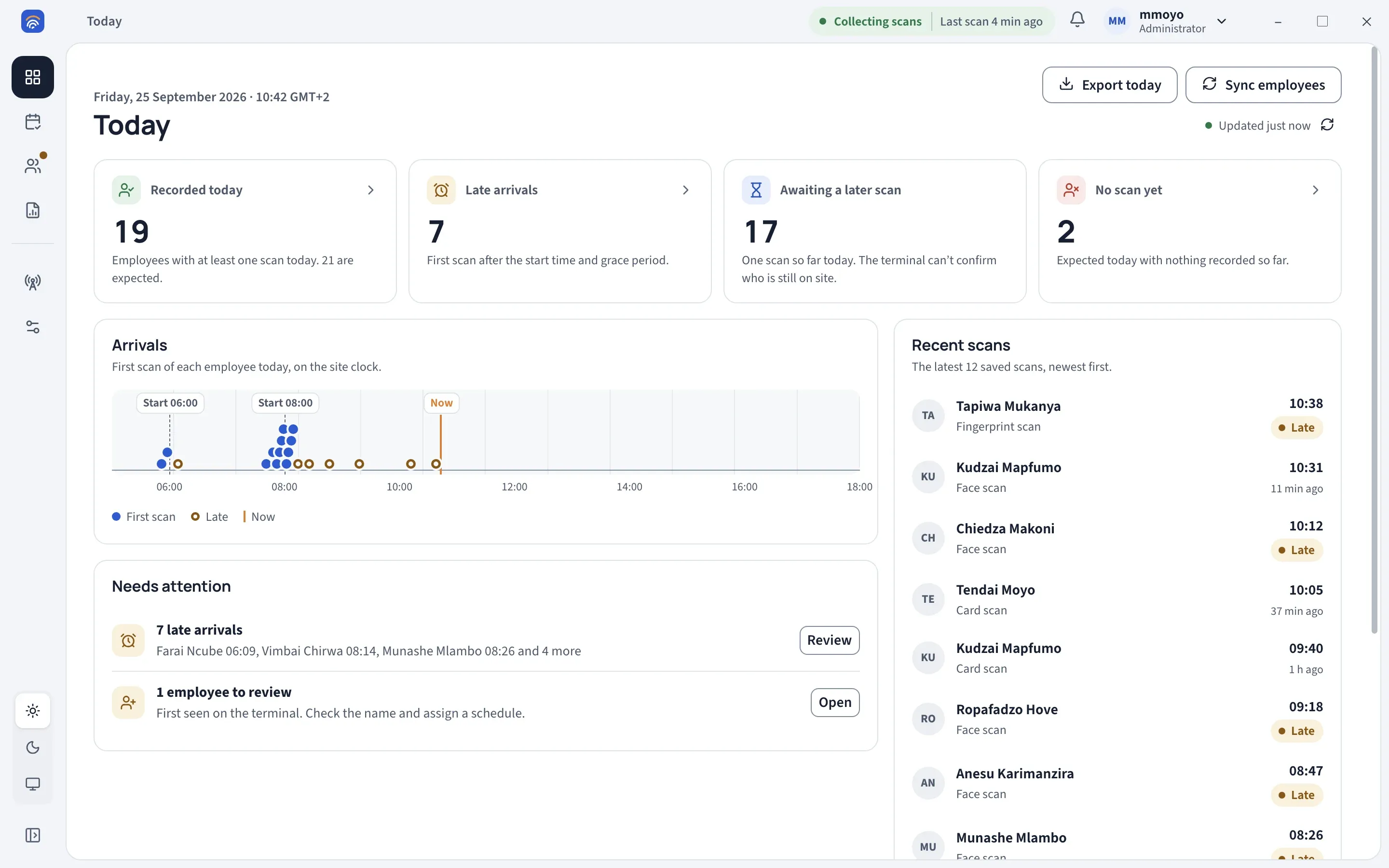
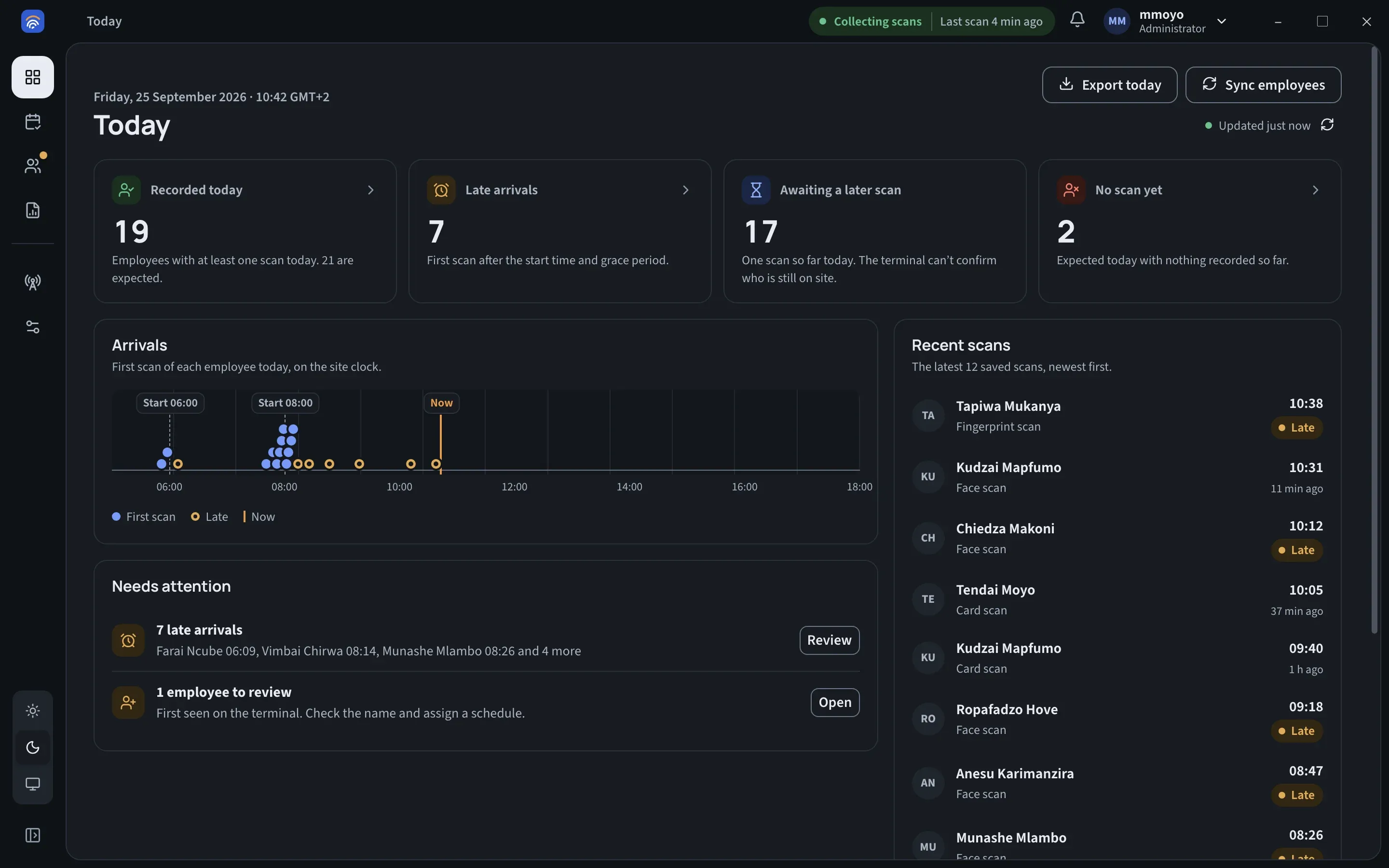
When the window is narrow, the sidebar is compact automatically and the Collapse button is hidden. Make the window wider to get the full sidebar back.
Numbers next to sidebar items show things waiting for you: on Employees, people who need review; on Connection, current connection problems.
Pop-up notices
Section titled “Pop-up notices”While you are signed in, BioTrack shows short notices in the corner of the window. They never appear on the sign-in screen.
Attendance events — one notice per saved scan, with the person’s name and the time, and a View record button that opens their attendance record. If the person is new on the terminal, the notice says so and asks you to review the employee. When several scans arrive close together, they are grouped into one notice, such as 3 attendance events recorded, with View activity to go to Today.
System notices — the collector connection was lost or restored, and recovery after a restart.
Notices disappear on their own after a few seconds. Scan notices are not shown while the BioTrack window is minimised or hidden; they are still added to the bell list.
Turning notices on or off
Section titled “Turning notices on or off”Go to Settings → Appearance & notifications and use the switches under Pop-up notifications:
- Attendance events
- System notices
The same switches are at the bottom of the notification panel.
The notification bell
Section titled “The notification bell”The bell in the title bar shows a red count of notices you have not seen yet. Select it to open Notifications:
- All, Attendance and System filter the list.
- Each notice shows how long ago it happened. Attendance notices have View to open the record.
- Clear empties the list.
The list only covers your current session (up to the most recent 60 notices) and is emptied when you sign out. It is not a history of attendance; use the Attendance page for that.