
Employees
The Employees page lists the people enrolled on the terminal. Use it to bring the list up to date, check people the terminal has only recently started recognising, and give each person the right schedule.
Syncing from the terminal
Section titled “Syncing from the terminal”Administrators see Sync from terminal at the top right.
- Select Sync from terminal.
- Wait for the message, for example “Employees synced: 2 added, 1 deactivated. 22 active.”
- People new on the terminal are added.
- People no longer on the terminal are deactivated. From that day they are no longer expected to attend, and their past attendance stays in BioTrack and in reports.
- The header shows when the list was last synced (for example “Last synced 3 hours ago”, or Never synced).
If the sync fails, a red message says Employee sync failed. The list was not changed. with the reason and a Try again button. BioTrack only applies a sync when the terminal returns a complete list, so a failed sync never removes people by mistake. If it keeps failing, check the connection.
Operators cannot sync; the empty list tells them an administrator can.
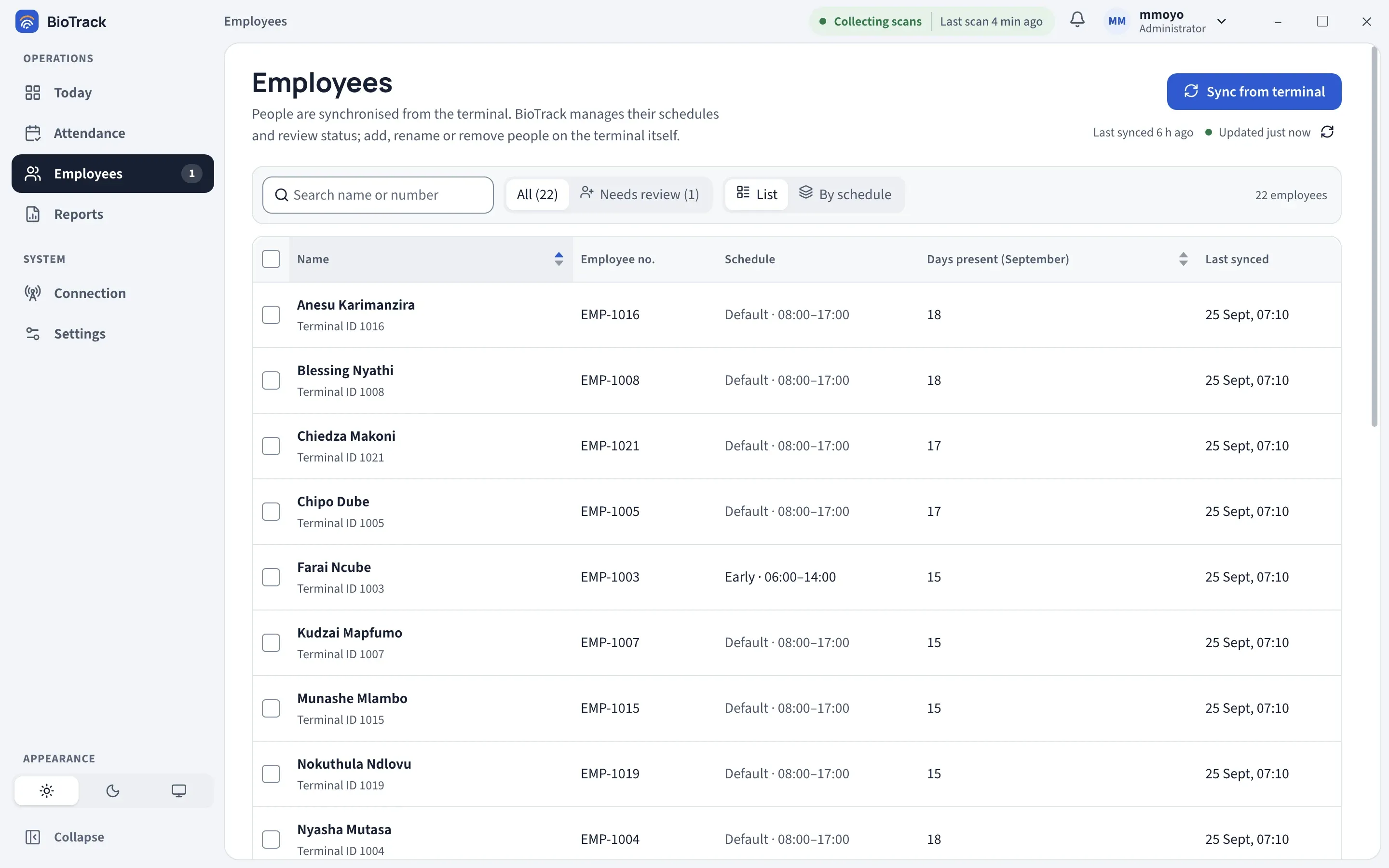
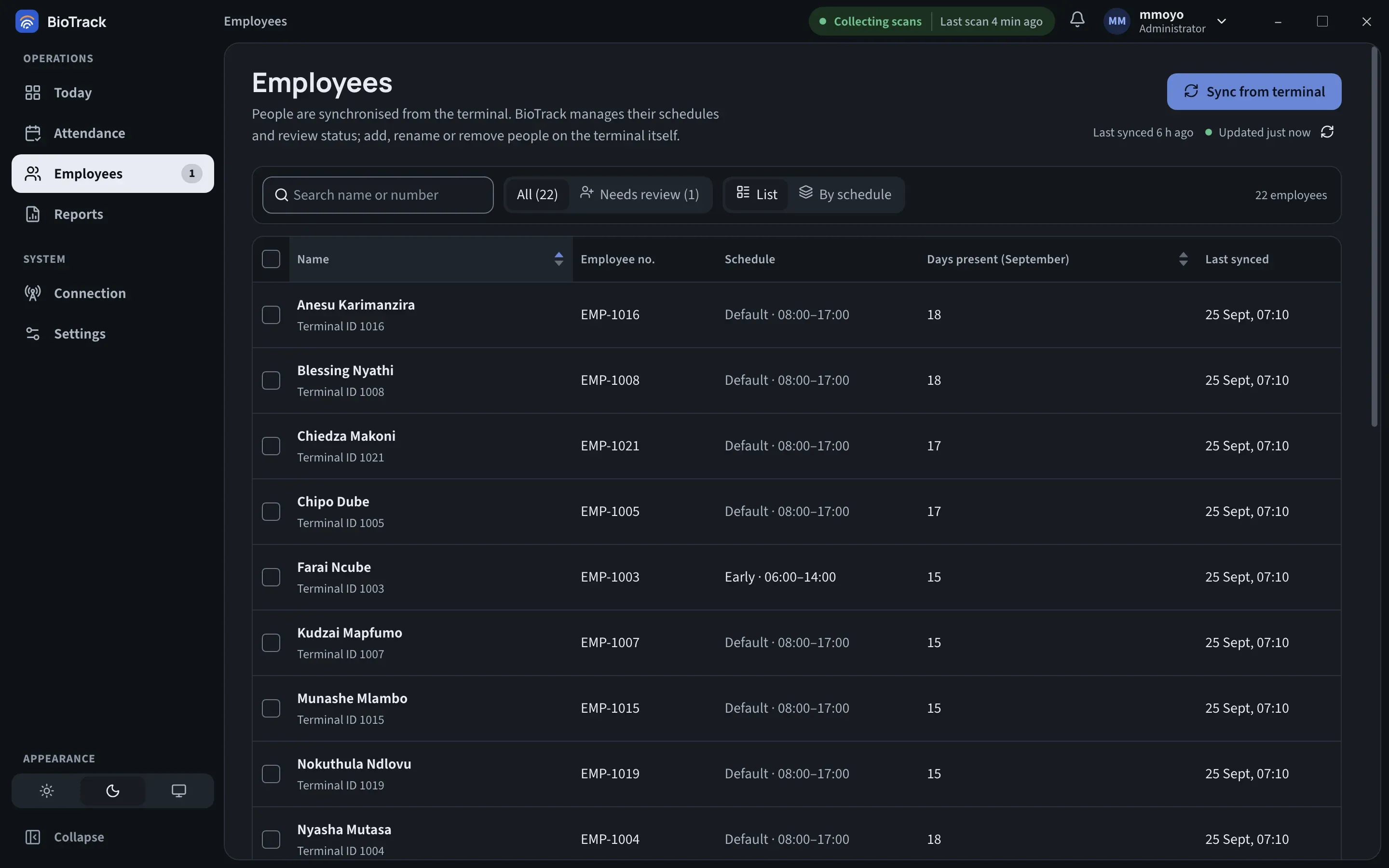
The employee list
Section titled “The employee list”| Column | Meaning |
|---|---|
| Name | The name from the terminal, with the Terminal ID underneath. A Review badge marks people who need checking. |
| Employee no. | The employee number from the terminal, if one is set. |
| Schedule | The shift assigned, or Default · 08:00–17:00 (your default hours) when none is assigned. |
| Days present | Days with a first scan this month, on the site calendar. |
| Last synced | When this person’s details last came from the terminal. |
Use Search name or number to find someone by name, employee number or terminal ID.
- All and Needs review switch between everyone and only the people who need review. The counts are in brackets.
- List and By schedule switch between one list and groups by schedule, which makes it easy to check who is on which shift.
Employees to review
Section titled “Employees to review”When someone scans who is not yet in BioTrack, the scan is still saved, and BioTrack creates an employee record from it. That person is marked for review: they get a Review badge, appear under Needs review, are counted on the Employees item in the sidebar, and show on Today under Needs attention as “First seen on the terminal. Check the name and assign a schedule.”
To clear a review:
- Select Needs review, then select the person’s name.
- Check the name matches the person enrolled on the terminal. If it is wrong, correct it on the terminal and sync.
- Under Schedule, choose their shift and select Save (administrators).
- Select Mark reviewed.
Operators can mark people as reviewed; assigning schedules needs an administrator.
The employee panel
Section titled “The employee panel”Selecting a name opens the employee’s panel.
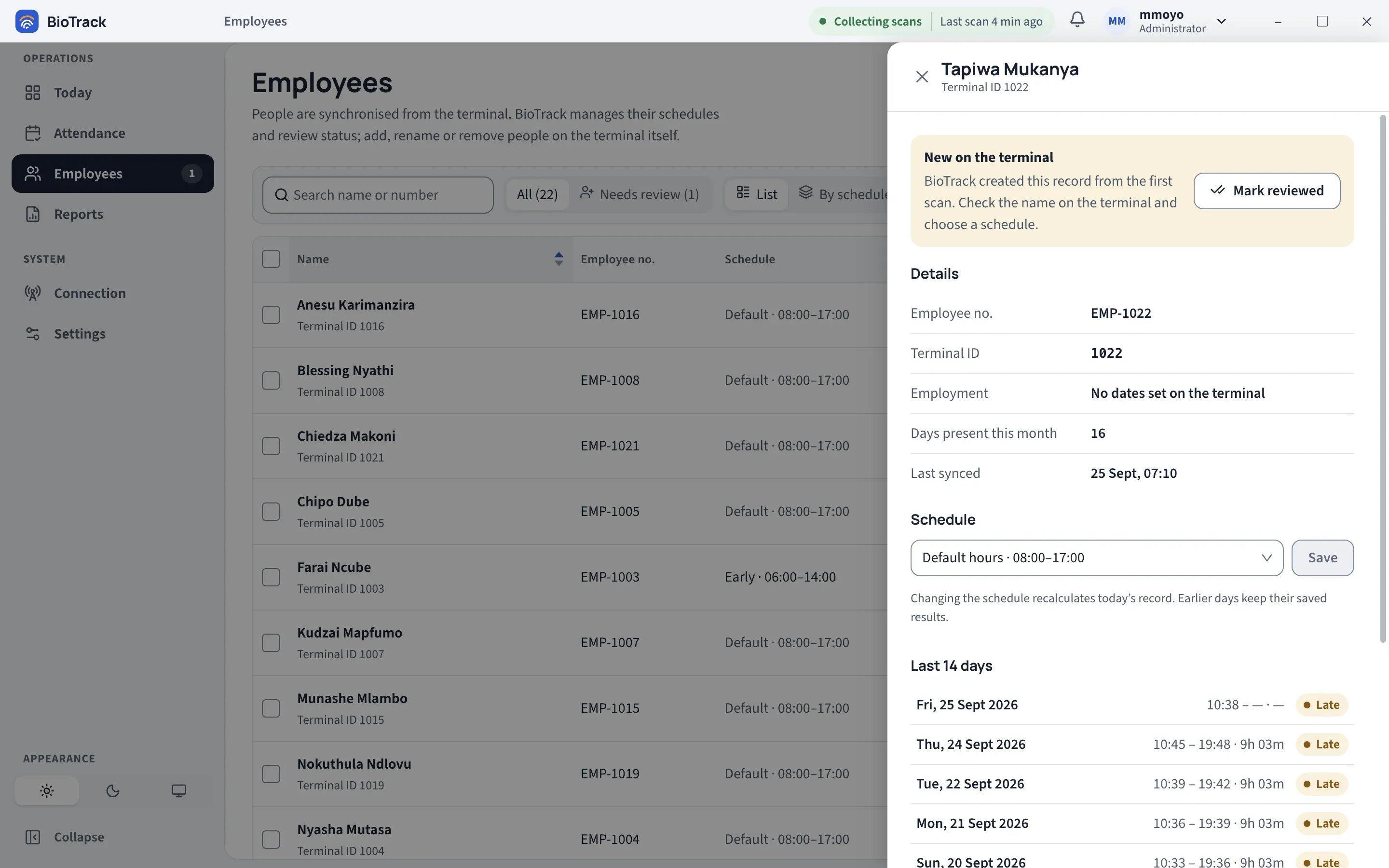
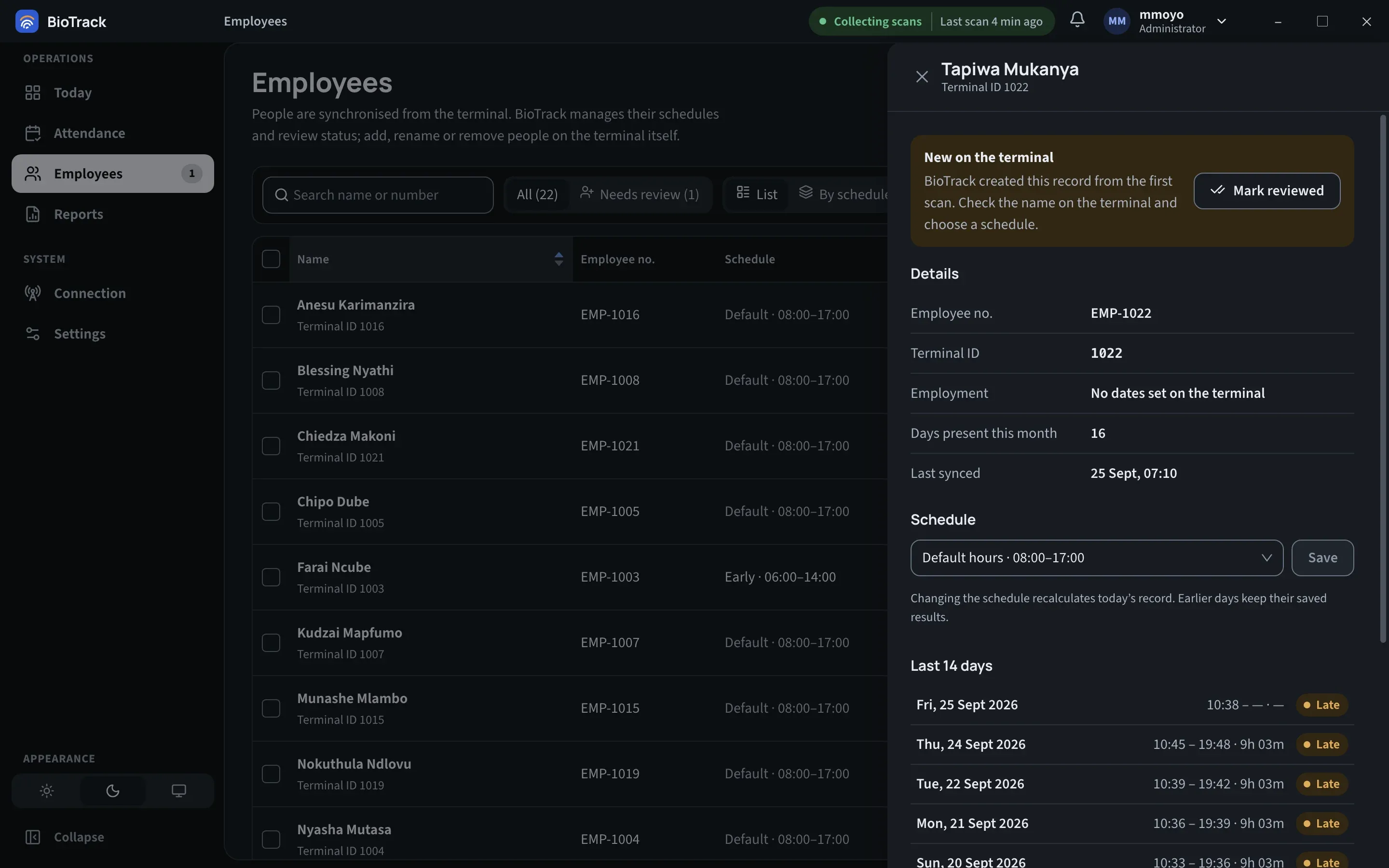
- New on the terminal — shown only for people who need review, with Mark reviewed.
- Details — Employee no., Terminal ID, Employment dates (if set on the terminal; outside these dates the person is not expected to attend), Days present this month and Last synced.
- Schedule — choose Default hours or a shift and select Save. Operators see the schedule but cannot change it.
- Last 14 days — each day’s first and last scan, worked time and status. Select a day to open its full attendance record.
Assigning a schedule to several people
Section titled “Assigning a schedule to several people”- In List view, tick the people you want.
- Select Assign schedule in the bar that appears.
- Choose the schedule and select Assign schedule.
If some assignments fail, BioTrack lists who and why, and keeps only those people ticked so you can try again.
Shifts themselves are created under Settings → Work schedules. See Work schedules.