
Cloud sync status
This page explains the delivery information in Settings → Cloud reporting: what each state means, how BioTrack sends and retries, and what to do if delivery keeps retrying. It is for administrators and anyone who checks that cloud reporting is working.
The transmission strip
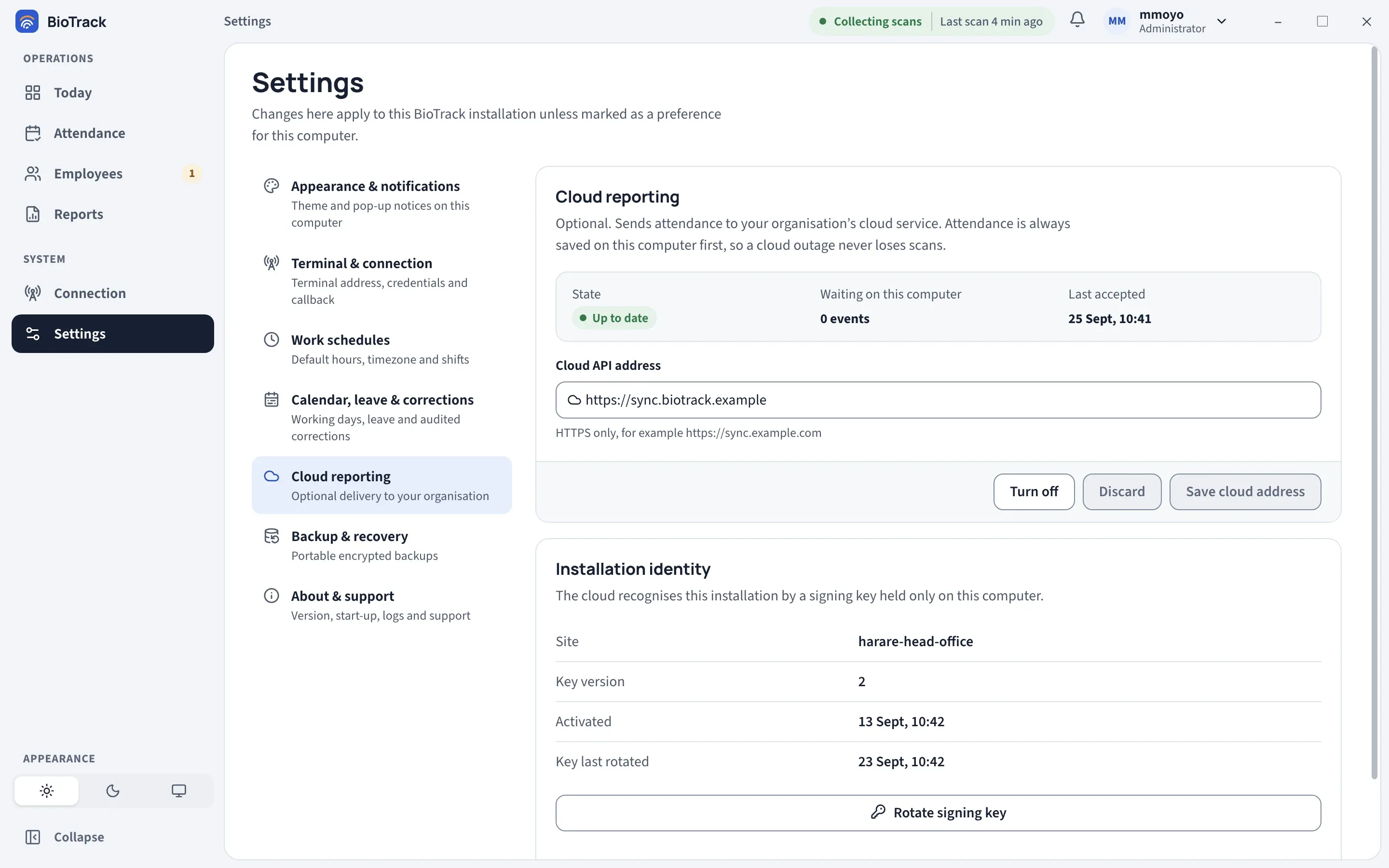
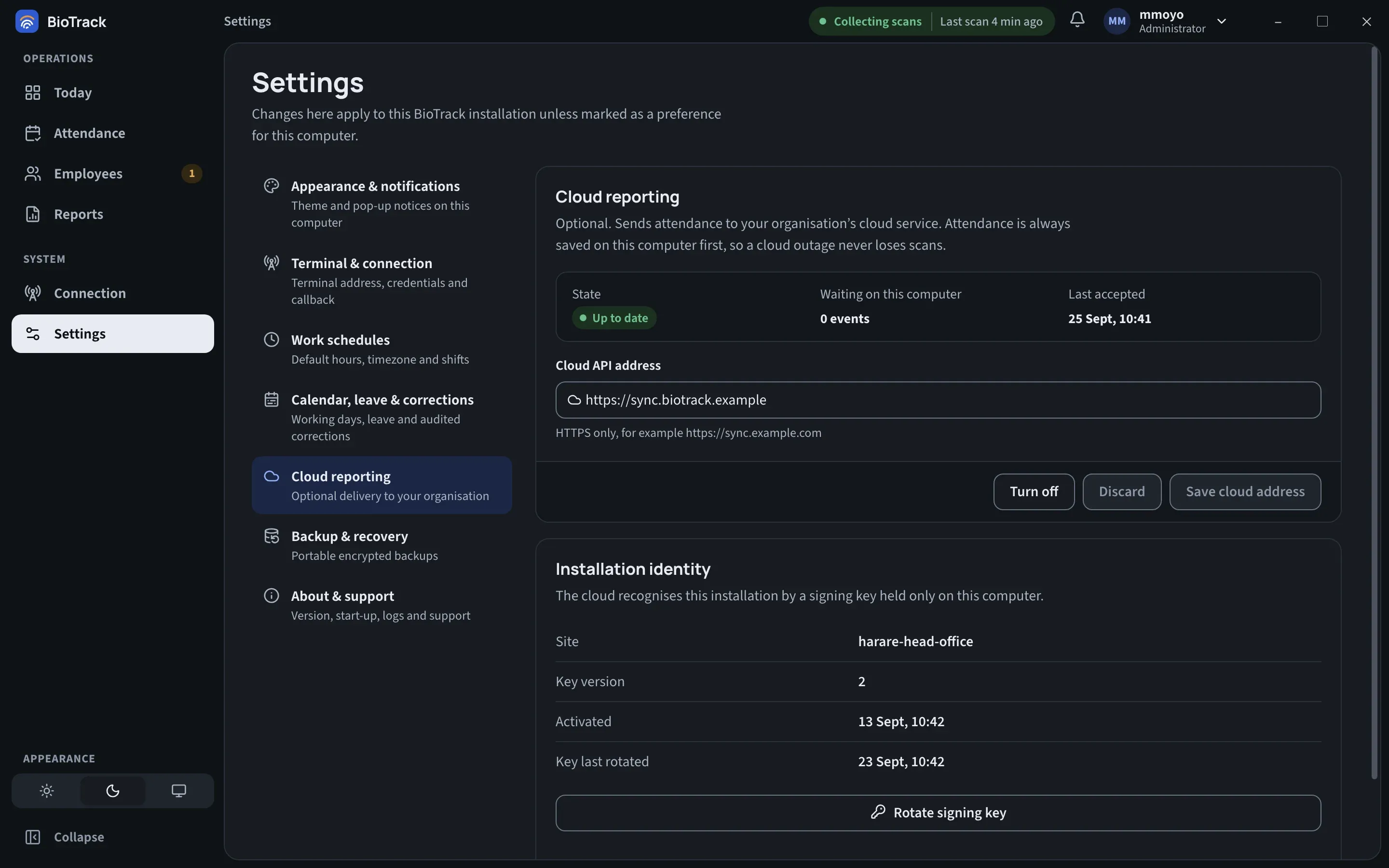
Section titled “The transmission strip”The strip at the top of Settings → Cloud reporting has three parts.
| Label | What it shows |
|---|---|
| State | What the sender is doing now. See the table below. |
| Waiting on this computer | How many records are in the outbox and not yet accepted by the cloud, shown as a number of events. This includes leave, calendar and correction records as well as scans. |
| Last accepted | When the cloud last confirmed a batch, in the site’s time zone. Not yet means no batch has been accepted. |
States
Section titled “States”| State | Meaning | Action |
|---|---|---|
| Off | No cloud address is saved. Nothing is sent. | None, unless you want to turn cloud reporting on. |
| Up to date | The sender is running and nothing is waiting, or the last batch was accepted. | None. |
| Sending | A batch is on its way to the cloud. | None. |
| Retrying | The last attempt failed. Records are safe on this computer and BioTrack will try again. A Delivery is retrying notice shows the reason. | Usually none. See If delivery keeps retrying. |
| Stopped | The collector’s cloud sender has stopped, usually because the BioTrack collector service is shutting down or restarting. | If it stays like this, check the service. See Connection states. |
| Waiting | A cloud address is saved but the sender has not picked it up yet, or the app cannot read the sender’s status. | Wait a minute. If it persists, check that the collector service is running. |
Retrying and Stopped are shown in amber. The other states are neutral or green.
How delivery works
Section titled “How delivery works”- Every 30 seconds the BioTrack collector checks the outbox. It runs in the background, so delivery continues while the BioTrack window is closed.
- Small batches. Each batch holds up to 11 records. When delivery is working, BioTrack sends batch after batch, up to 64 in a row, before pausing until the next check. A large backlog after an outage catches up without waiting 30 seconds between every batch.
- Nothing is marked sent until the cloud confirms it. If the cloud’s reply is missing, late or incomplete, the whole batch goes back into the outbox and is sent again later. The cloud recognises records it already has, so sending a batch twice does not create duplicates.
- Growing waits after failures. After a failed attempt, BioTrack waits before retrying that batch. The wait roughly doubles with each failure, with some randomness added, and never exceeds 15 minutes.
Local attendance never waits for the cloud. Scans are saved and shown in BioTrack straight away, whatever the cloud state.
If delivery keeps retrying
Section titled “If delivery keeps retrying”A short spell of Retrying is normal, for example during an internet outage. If it lasts longer than you expect:
- Note the time, the Waiting on this computer count and the message under Delivery is retrying.
- Check that this computer can reach the internet.
- Check that the Windows clock is correct. The cloud refuses requests from a computer whose clock is more than five minutes out.
- Check that Cloud API address matches the address your commissioner gave you.
- Leave everything else as it is and contact your commissioner with the details from step 1.
Over the following checks, Waiting on this computer should keep growing while delivery fails, and fall once it recovers.
Rotate the signing key
Section titled “Rotate the signing key”The cloud recognises this installation by its signing key. Your organisation may ask you to replace it on a schedule or after a security concern. Only an administrator can do this, and only after the installation is activated.
- Open Settings → Cloud reporting.
- In Installation identity, select Rotate signing key.
- In Rotate the cloud signing key?, select Rotate key.
BioTrack creates a new key on this computer, proves to the cloud that it holds it, and only then retires the old one. When it finishes, you see Signing key rotated to version followed by the new number, and Key version and Key last rotated update. Attendance collection continues throughout.
If rotation is interrupted, for example by a network drop or a restart, BioTrack keeps the new key and finishes the same rotation before it sends any more batches. If the cloud already accepted the new key, BioTrack recognises that and carries on. An unfinished rotation expires in the cloud after 24 hours; BioTrack then discards the unused new key and shows Pending cloud key rotation expired; start the rotation again. Delivery continues with the current key, and you can start the rotation again.
If an installation is revoked
Section titled “If an installation is revoked”Your commissioner can revoke an installation in the cloud, for example when a computer is retired, lost or may be compromised. After that, the cloud refuses every delivery and key rotation from it.
On the computer, the state shows Retrying and the message reports that the cloud refused the request. BioTrack keeps collecting attendance locally, and waiting records stay in the outbox. Revocation cannot be undone with the commissioning tools, so contact your commissioner rather than trying to re-activate.