
Monthly reports
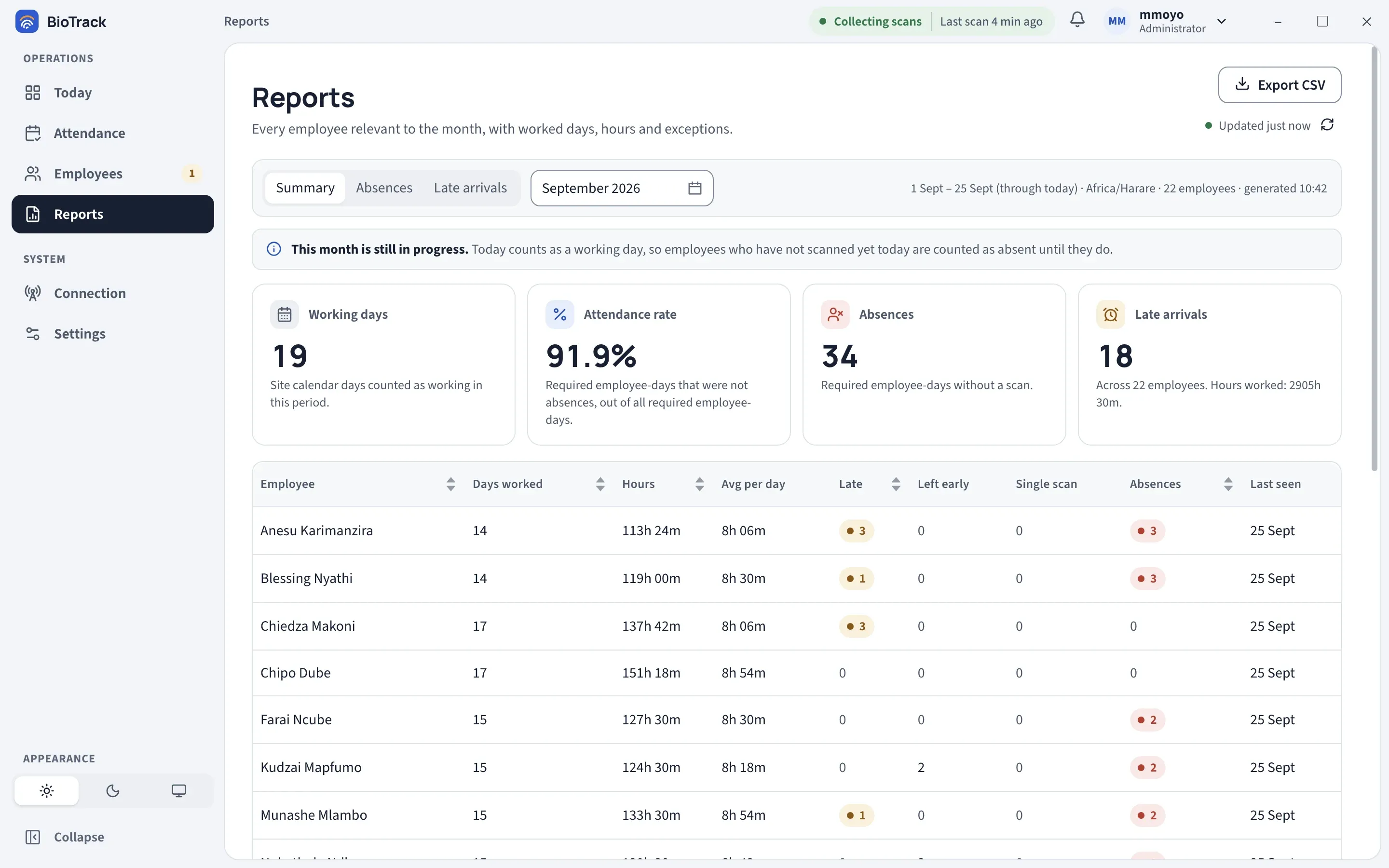
The Reports page turns a month of attendance into three reports you can read on screen or export for payroll and HR records. This page explains what each figure means, so you can answer questions about it.
Choosing a report and month
Section titled “Choosing a report and month”- Choose Summary, Absences or Late arrivals.
- Pick the month from the month selector. The current month is selected when you open the page; future months are not available.
- Read the line on the right to confirm what you are looking at, for example “1 Sept – 25 Sept (through today) · Africa/Harare · 22 employees · generated 10:42”.
| Report | Who is listed |
|---|---|
| Summary | Every employee relevant to the month, with worked days, hours and exceptions. |
| Absences | Employees with at least one required working day without a scan, most absences first. |
| Late arrivals | Employees whose first scan was after the start time and grace period on at least one day, most late arrivals first. |
“Relevant to the month” means employees whose employment overlaps the period. When a sync finds someone has been removed from the terminal, BioTrack ends their employment on that day, so they still appear for the part of the month they were employed.
The current month is still in progress
Section titled “The current month is still in progress”When you look at the current month, the report runs from the 1st up to and including today, and a notice reads This month is still in progress.
Today counts as a working day, so employees who have not scanned yet today are counted as absent until they do. Absence figures for the current month will usually drop during the day as people arrive. For final figures, run the report after the month has ended.
Summary cards
Section titled “Summary cards”The four cards at the top describe the whole period and all listed employees.
| Card | How it is worked out |
|---|---|
| Working days | Days in the period that are working days on the site calendar: Monday to Friday, minus holidays, plus any working weekends you added. This is the same for everyone and ignores individual leave. |
| Attendance rate | Required employee-days that were not absences, divided by all required employee-days, as a percentage. A required employee-day is one employee on one working day when they were employed and not on leave. A day with at least one scan counts as attended, whether it was late, left early or a single scan. If there are no required days, the rate shows 100%. |
| Absences | Required employee-days without a scan. |
| Late arrivals | Total late days across all employees. The caption also shows how many employees are included and the total Hours worked. |
Summary columns
Section titled “Summary columns”| Column | Meaning |
|---|---|
| Days worked | Days with a first scan, including scans on weekends or holidays, plus any assumed days before setup. |
| Hours | Total worked time: for each day, the time from first to last scan. Days with a single scan add no hours. |
| Avg per day | Hours divided by Days worked. |
| Late | Days where the first scan was after the start time plus grace period. |
| Left early | Days where the last scan was before the scheduled end. This includes days that were also late. |
| Single scan | Days with a first scan but no later scan. |
| Absences | Required working days with no scan. |
| Last seen | The most recent day this month with a scan. |
Absences columns
Section titled “Absences columns”| Column | Meaning |
|---|---|
| Absences | Required working days with no scan. |
| Share of working days | Absences divided by the site’s Working days in the period. |
| Last seen | The most recent day this month with a scan, or Not this month. |
Late arrivals columns
Section titled “Late arrivals columns”| Column | Meaning |
|---|---|
| Late arrivals | Days the first scan was late. |
| Days worked | Days with a first scan. |
| Share of worked days | Late arrivals divided by days worked. |
Select a column heading with arrows to sort by it.
Export CSV
Section titled “Export CSV”Export CSV saves the report you are looking at (Summary, Absences or Late arrivals) for the selected month as a CSV file. The file includes every row and is produced from the saved attendance at the moment you export, using the same rules as the screen.
When newer data arrives
Section titled “When newer data arrives”A report on screen is a snapshot, so it does not change while you read it. If new scans, corrections or leave affect it, a bar reads Newer attendance data is available for this report. Select Update report to refresh.
Why a figure looks wrong
Section titled “Why a figure looks wrong”- Someone on leave shows as absent — the leave was not recorded, or it was revoked. Record it from the attendance record or under Settings → Calendar, leave & corrections.
- A public holiday counted as a working day — add it to the calendar. See Calendar, leave and corrections.
- Lateness looks wrong after a schedule change — schedule changes apply from the day they are made; earlier days keep their saved results.
- A missed scan — an administrator can correct the day. See Correcting a day.