
Work schedules
Schedules decide whether a scan is on time or late, and whether someone left early. This page explains how to set them up under Settings → Work schedules. Operators can see these settings; only an administrator can change them.
How schedules are used
Section titled “How schedules are used”Every employee follows exactly one schedule:
- the Default working hours, used for everyone without an assigned shift, or
- a named shift that you assign to them.
For each day, BioTrack takes the person’s first and last scan and compares them with that schedule:
- Late — the first scan is after the start time plus the grace period.
- Left early — the last scan is before the scheduled end.
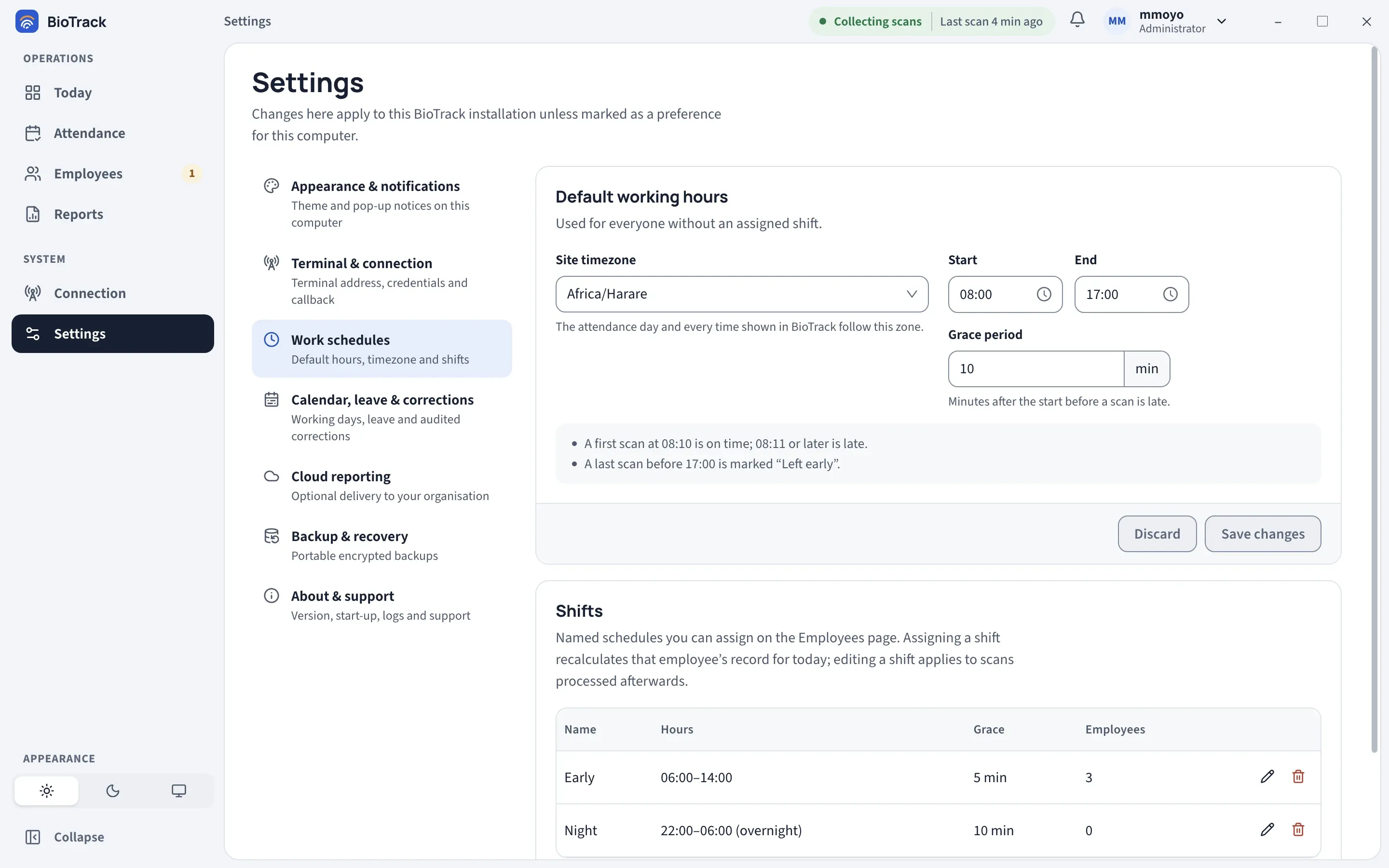
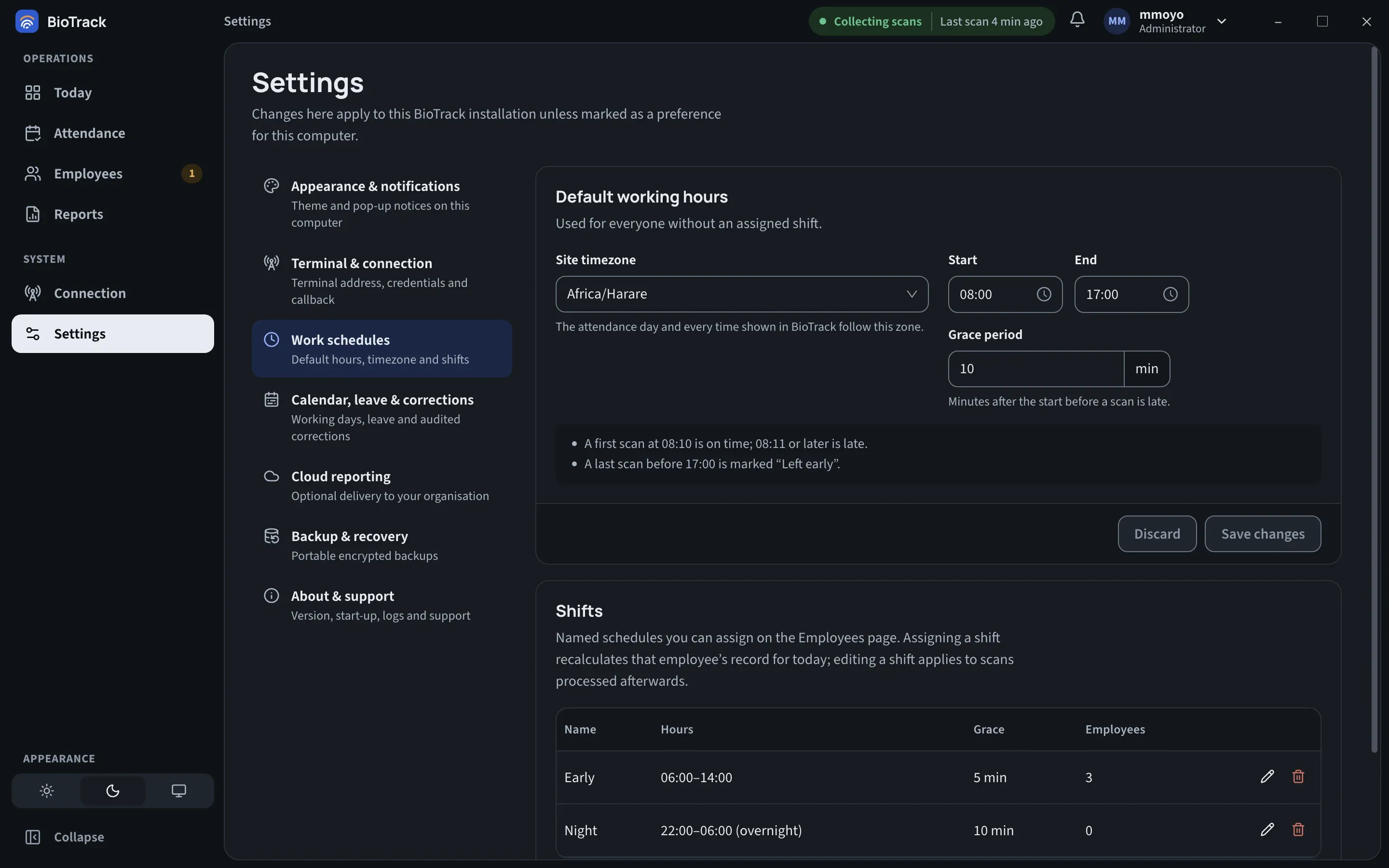
Both forms show plain-language examples under the fields, worked out from the times you enter, for example “A first scan at 08:10 is on time; 08:11 or later is late.”
Default working hours
Section titled “Default working hours”| Field | What it does |
|---|---|
| Site timezone | The attendance day and every time shown in BioTrack follow this zone. Choose the zone where the terminal and staff are, for example Africa/Harare. Type to search the list. |
| Start | The scheduled start time. |
| End | The scheduled end time. |
| Grace period | Minutes after the start before a scan is late (0 to 720). With a start of 08:00 and 10 minutes’ grace, 08:10 is on time and 08:11 is late. With 0, any first scan after the start time is late. |
To change them:
- Edit the fields. Unsaved changes appears, and the section is marked in the settings list.
- Select Save changes (or Discard to go back to the saved values).
- Read the confirmation Apply the new schedule? and select Apply schedule.
Shifts
Section titled “Shifts”Shifts are named schedules, such as “Early 06:00–14:00” or “Night 22:00–06:00”, that you assign on the Employees page. The table shows each shift’s Name, Hours, Grace and how many Employees use it.
Adding or editing a shift
Section titled “Adding or editing a shift”- Select Add shift, or the pencil next to an existing shift.
- Enter a Name, the Start and End times, and the Grace period in minutes.
- Check the examples under the fields.
- Select Create shift or Save shift.
Editing a shift applies to scans processed afterwards. Days already recorded keep their results.
Overnight shifts
Section titled “Overnight shifts”If the end time is earlier than the start time, for example 22:00–06:00, the shift is overnight and is marked (overnight) in the list. Scans up to the end time the next morning count toward the day the shift started. For a night shift starting on Monday at 22:00, a scan at 05:55 on Tuesday belongs to Monday’s record.
Deleting a shift
Section titled “Deleting a shift”Select the bin icon next to the shift. You can only delete a shift nobody uses; if employees are still assigned, BioTrack tells you how many to move first. Deleting a shift does not change saved attendance records.
Assigning schedules to employees
Section titled “Assigning schedules to employees”Assign shifts on the Employees page, either one person at a time in their panel or several at once with Assign schedule. See Employees.
Assigning a shift recalculates that employee’s record for today. Earlier days keep the results already saved.
Working days are set elsewhere
Section titled “Working days are set elsewhere”Schedules set the hours. Which days people are expected to work (Monday to Friday by default, holidays and working weekends) is set under Settings → Calendar, leave & corrections.