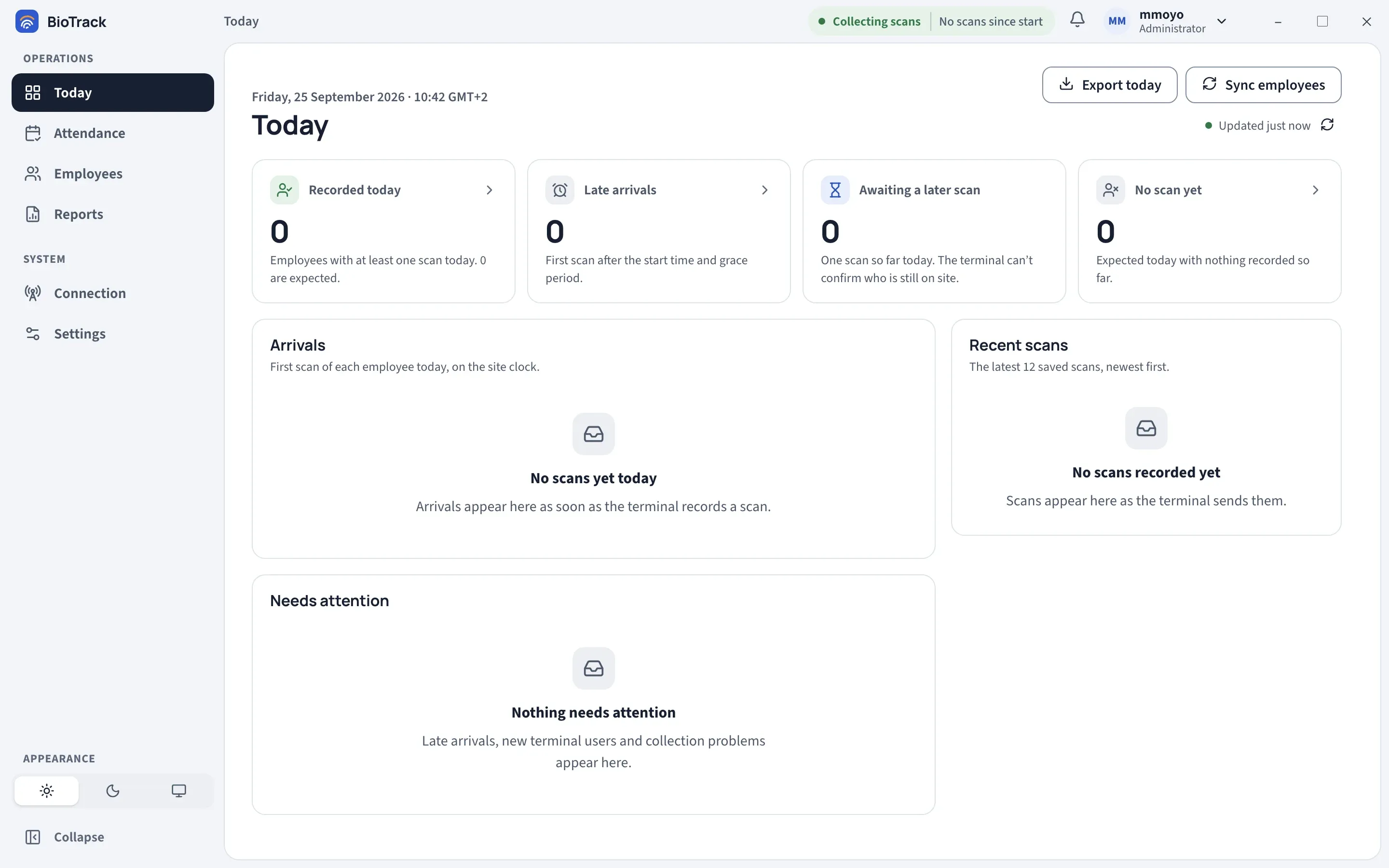
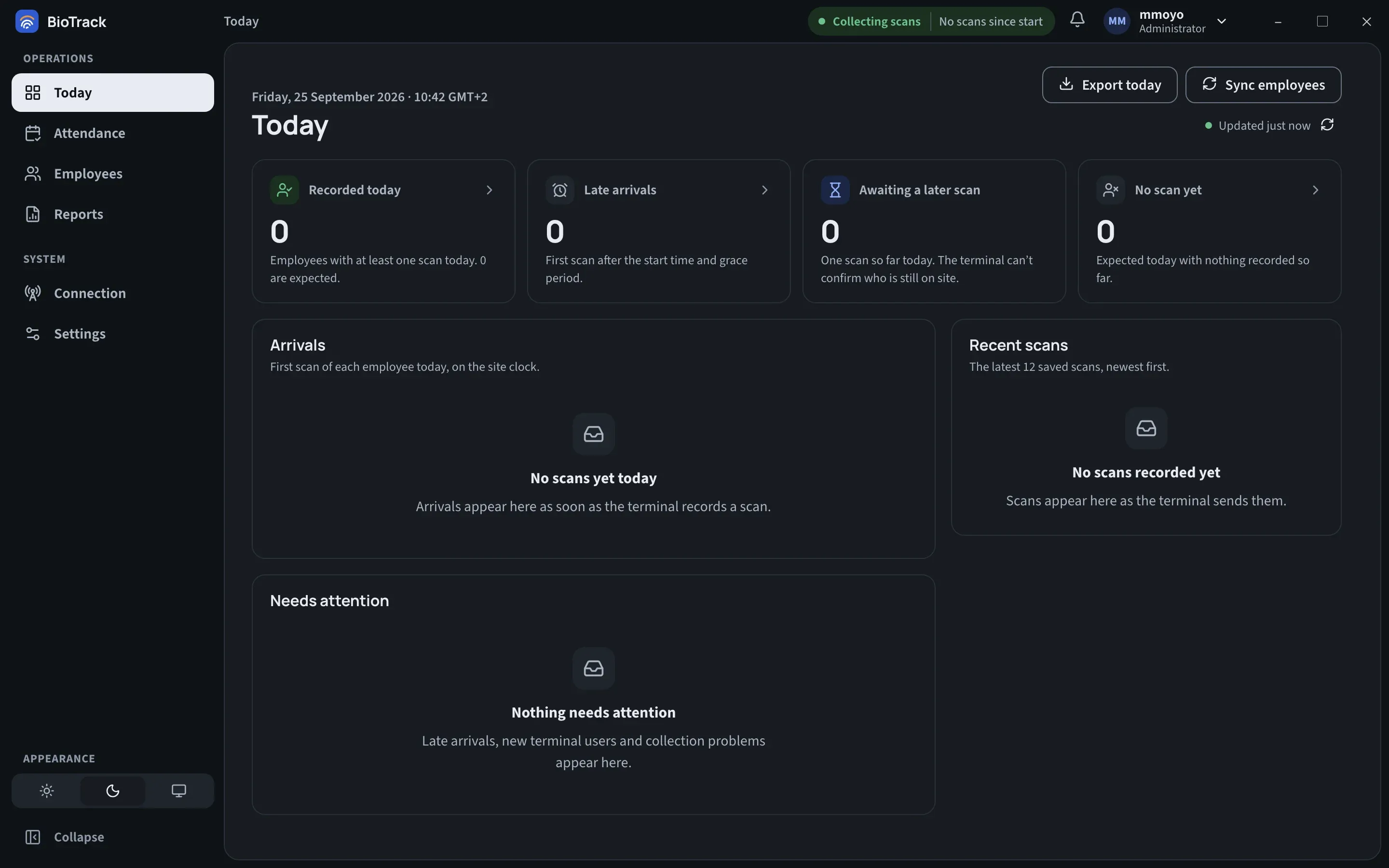
Today dashboard
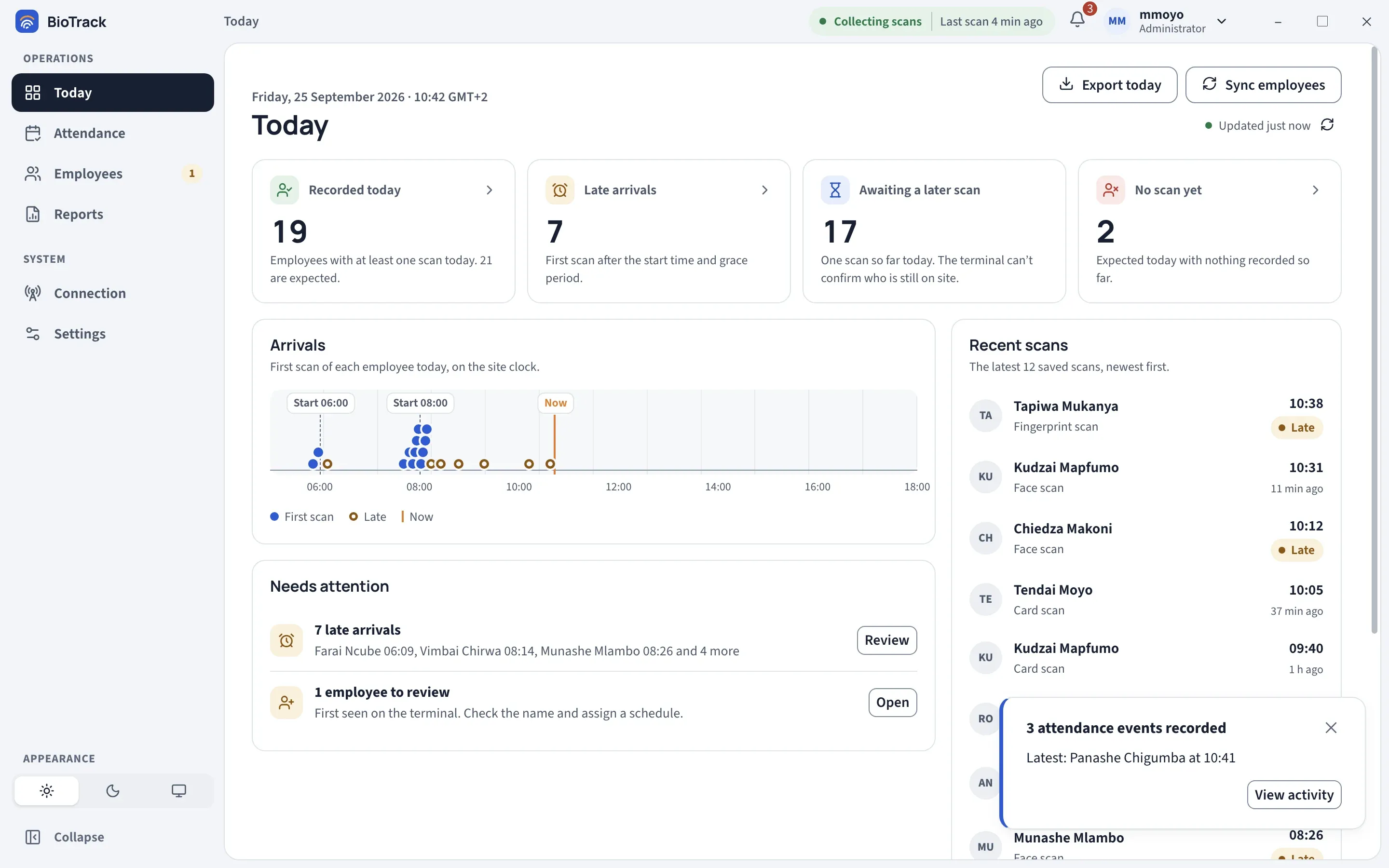
Today is the first page you see after signing in. It shows who has recorded attendance so far today, who is late, who has not arrived yet and anything that needs a person to look at it. Every number opens the list behind it.
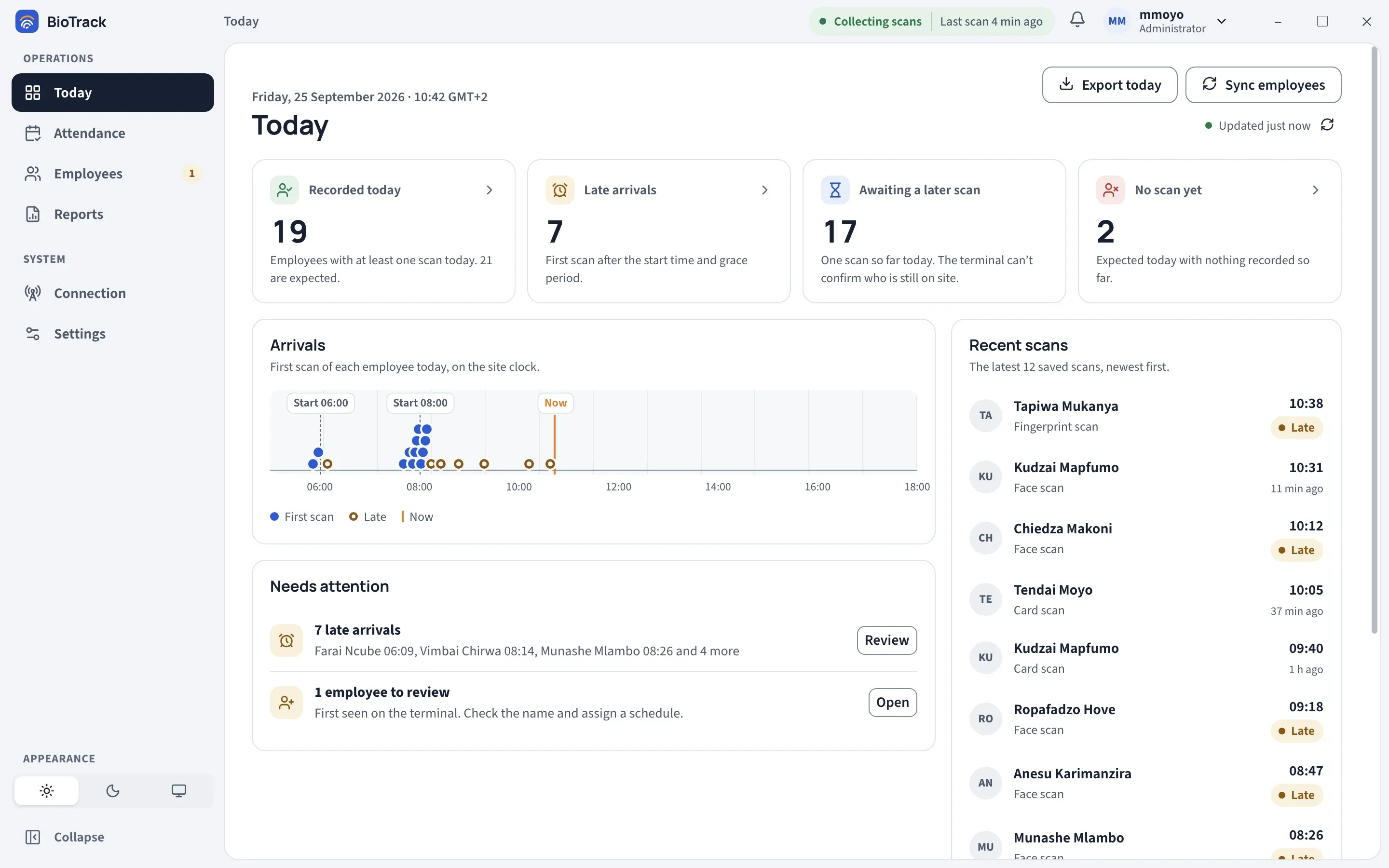
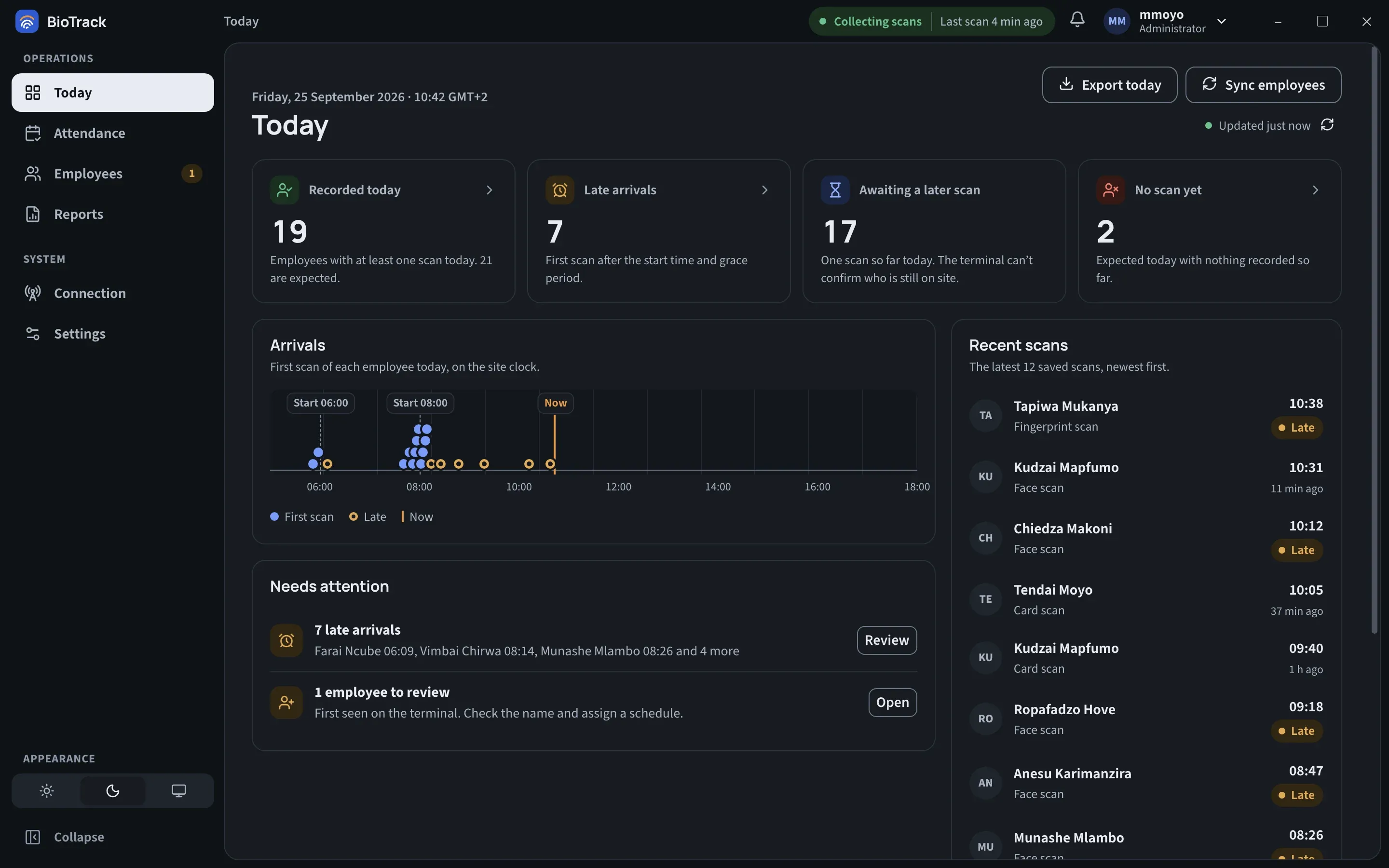
The line above the page title shows today’s date, the current time on the site clock and the site timezone. Hover over the timezone to see its full name. “Today” always means today in the site timezone set under Settings → Work schedules, not the timezone of the computer.
The four summary cards
Section titled “The four summary cards”| Card | What it counts |
|---|---|
| Recorded today | Employees with at least one scan today. The card also says how many employees are expected today (working day, not on leave, currently employed). |
| Late arrivals | Employees whose first scan today was after their start time plus the grace period. |
| Awaiting a later scan | Employees with only one scan so far today. The terminal records scans, not “in” or “out”, so BioTrack cannot tell who is still on site. |
| No scan yet | Employees expected today who have nothing recorded so far. |
Select Recorded today, Late arrivals or No scan yet to open the Attendance page for today, filtered to match. Awaiting a later scan is information only.
Arrivals
Section titled “Arrivals”The Arrivals chart plots the first scan of each employee today on the site clock. Each dot is one person; dots stack where many people arrived at about the same time.
- A filled dot is a First scan that was on time.
- An outlined dot is Late.
- Dashed lines labelled Start 08:00 (for example) mark the start time of each schedule in use.
- The orange Now line marks the current time.
Hover over a dot to see the name and time. Select it to open that person’s record for today.
Needs attention
Section titled “Needs attention”This list collects things someone should act on. When there is nothing, it says Nothing needs attention.
| Item | What to do |
|---|---|
| n late arrivals — lists the first few names and times | Select Review to see today’s late arrivals on the Attendance page. |
| n employees to review — “First seen on the terminal” | Select Open to go to the employees who need review. Check the name and assign a schedule. See Employees. |
| Terminal clock … | The terminal’s clock is noticeably wrong, so scans may land on the wrong day or shift. Select Details and correct the clock on the terminal. |
| n terminal callbacks set aside | The terminal sent messages BioTrack could not save as attendance (unrecognised content or an implausible time). Select Details and tell your administrator. |
Recent scans
Section titled “Recent scans”Recent scans lists the latest 12 saved scans, newest first. Each row shows the name, how the person was identified (Face scan, Fingerprint scan, Card scan), the time and how long ago it was. A Late badge appears on the first scan of an employee who arrived late. Scans from an earlier day show that date.
Select a row to open that person’s attendance record for the day of the scan.
Updated just now
Section titled “Updated just now”Under the buttons, a small label tells you how fresh the page is:
- Updated just now (or “Updated 2 min ago”) — the page refreshes itself whenever a new scan is saved.
- Refreshing… — a refresh is in progress.
- Last updated 10:42 — BioTrack could not reach the collector or refresh the data. You are seeing the last results it loaded. It keeps retrying.
Hover over the label for an explanation, or select the refresh arrow next to it to reload now.
Export today
Section titled “Export today”Export today saves today’s attendance for all employees as a CSV file, which you can open in Excel or another spreadsheet. Choose where to save it; a short message confirms how many rows were written.
Sync employees
Section titled “Sync employees”Sync employees (administrators only) fetches the list of people enrolled on the terminal. New people are added, and people removed from the terminal are deactivated in BioTrack. A message reports how many were added and deactivated. The same action is on the Employees page as Sync from terminal.
Live scan notices
Section titled “Live scan notices”While you are signed in, a short notice appears in the corner of the window each time a scan is saved. When several scans arrive together, they are grouped into one notice such as 3 attendance events recorded, with View activity.
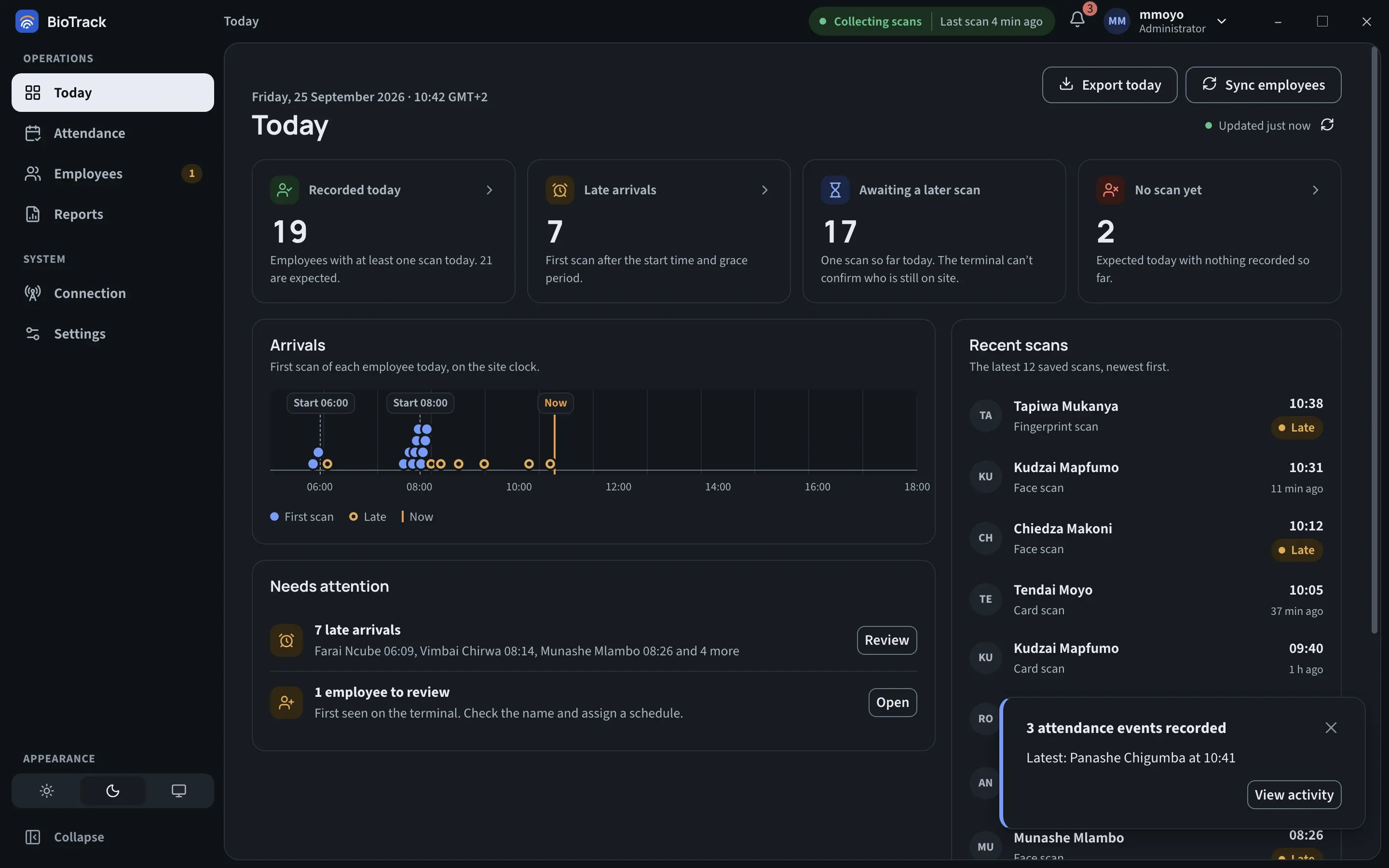
You can turn these notices off. See Notifications and appearance.
On a new installation
Section titled “On a new installation”Straight after setup, every card shows 0 and the panels read No scans yet today, No scans recorded yet and Nothing needs attention. That is expected. The page fills in as soon as the terminal records its first scan. If nothing appears after someone scans, check the status at the top of the window and the Connection states page.