
Terminal and connection
This page is for the administrator who looks after the BioTrack PC and the Hikvision terminal. It covers Settings → Terminal & connection, the Connection page, and what you can and cannot change after setup.
Only a BioTrack administrator can change these settings. Operators see them read-only, with the note Only an administrator can change terminal settings.
Settings → Terminal & connection
Section titled “Settings → Terminal & connection”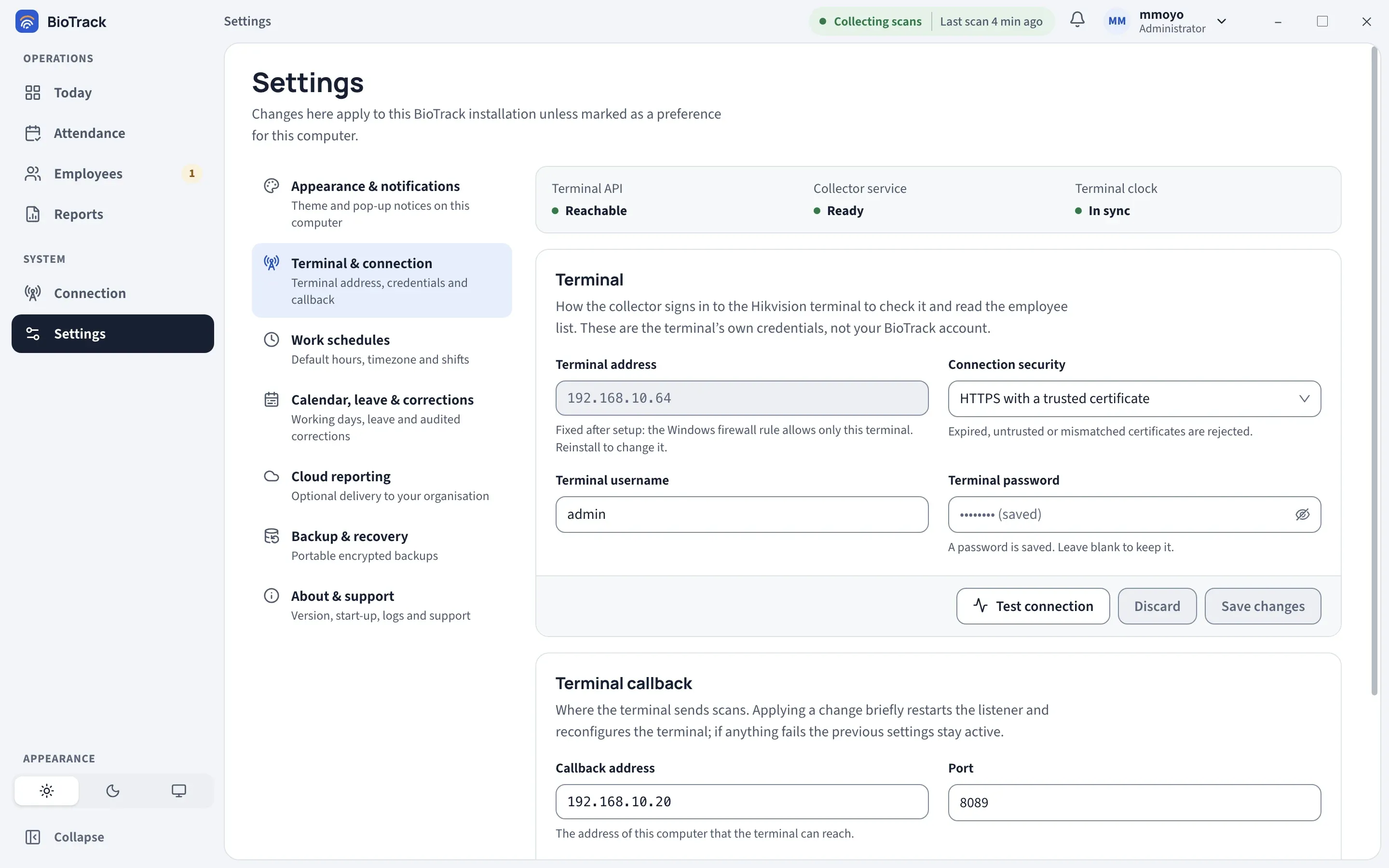
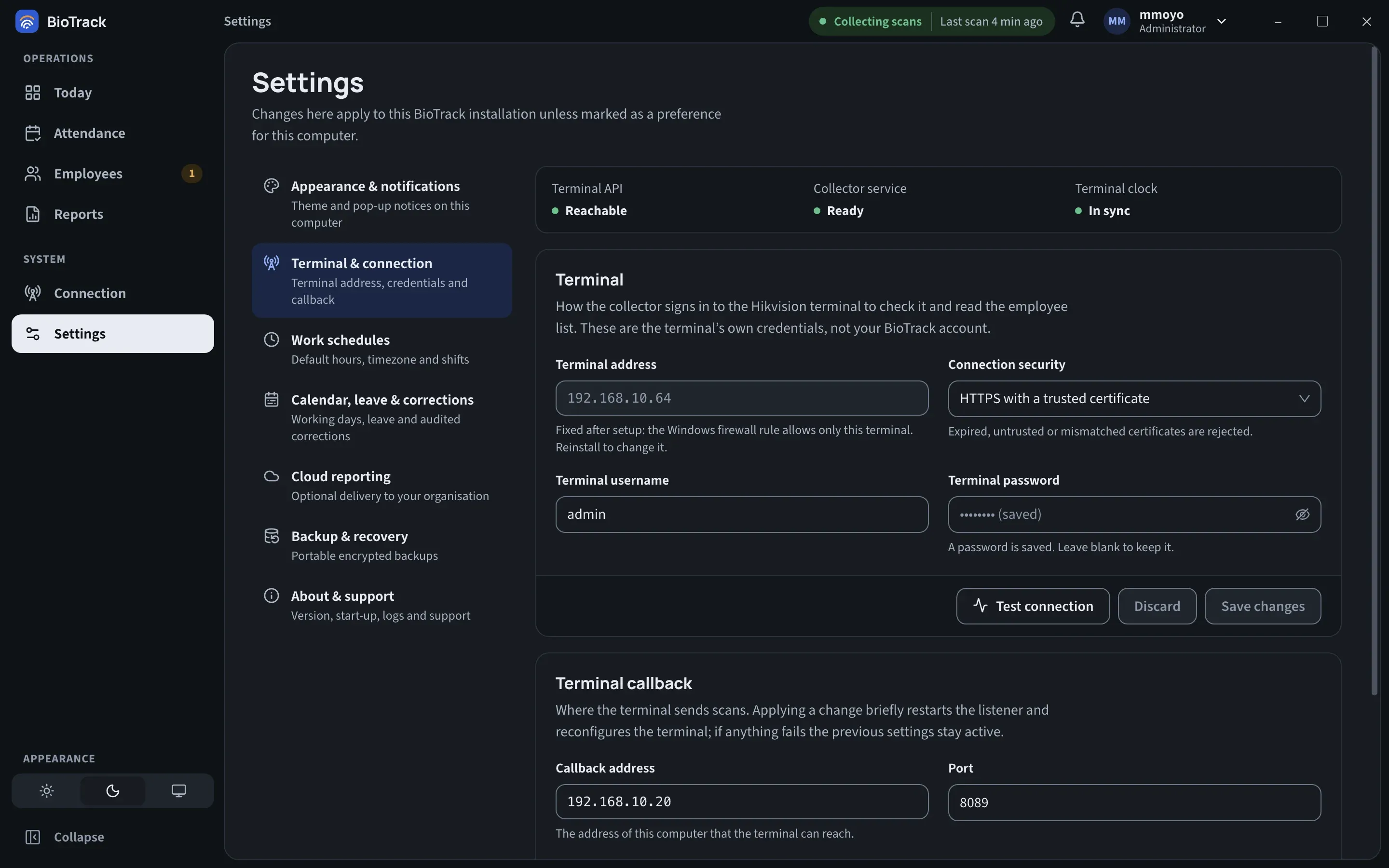
The top of the section shows a live status strip with three values: Terminal API, Collector service and Terminal clock. It updates on its own and never touches what you are typing in the forms below.
Terminal
Section titled “Terminal”These are the credentials the collector uses to sign in to the terminal, check it and read the employee list. They are the terminal’s own credentials, not a BioTrack account.
| Field | What it does |
|---|---|
| Terminal address | The terminal’s IP address. Read-only: the Windows firewall rule allows only this terminal. See Changing the terminal address or port. |
| Connection security | HTTPS with a trusted certificate (default) rejects expired, untrusted or mismatched certificates. HTTP Digest (isolated device network only) is not encrypted; use it only on a dedicated, isolated device network. |
| Terminal username | The terminal account name. Defaults to admin. |
| Terminal password | Leave blank to keep the saved password. BioTrack never shows the saved password, only that one is saved. |
To change the credentials:
- Edit the fields.
- Select Test these settings. BioTrack tests your draft without saving it and shows the terminal model and firmware if it succeeds, or The terminal did not accept these settings with the reason.
- Select Save changes. Select Discard to go back to the saved values.
With no unsaved changes, the button reads Test connection and tests the saved settings.
Terminal callback
Section titled “Terminal callback”This is where the terminal sends scans: an address and port on this PC.
| Field | What it does |
|---|---|
| Callback address | The address of this computer that the terminal can reach. |
| Port | The listener port, 1024 to 65535. The default is 8089. |
| Listen on | Advanced. The local address the listener binds to. 0.0.0.0 listens on every network adapter. |
Select Apply and verify to apply a change. The collector briefly restarts the listener, reconfigures the terminal and checks the result. If anything fails, you see Callback settings not applied and the previous settings stay active. On success you see Callback settings applied and verified with the terminal.
Changing the terminal address or port
Section titled “Changing the terminal address or port”The Windows firewall rule created during setup allows only the chosen terminal IP address on the chosen listener port, and the collector refuses to listen or configure a callback on any other combination. That approval needs Windows administrator rights, which the desktop app does not have after setup. So:
- Terminal address cannot be changed in Settings. The app asks you to reinstall to change it.
- A Port change after setup is refused with a message that the terminal and port need Windows administrator approval. The previous settings stay active.
- Callback address and Listen on can be changed with Apply and verify.
To move to a new terminal IP address or listener port, an administrator needs to recommission the service with Windows administrator rights (reinstall, or the advanced maintenance procedure in Updates and uninstall). Do not widen the firewall rule by hand to work around this.
The Connection page
Section titled “The Connection page”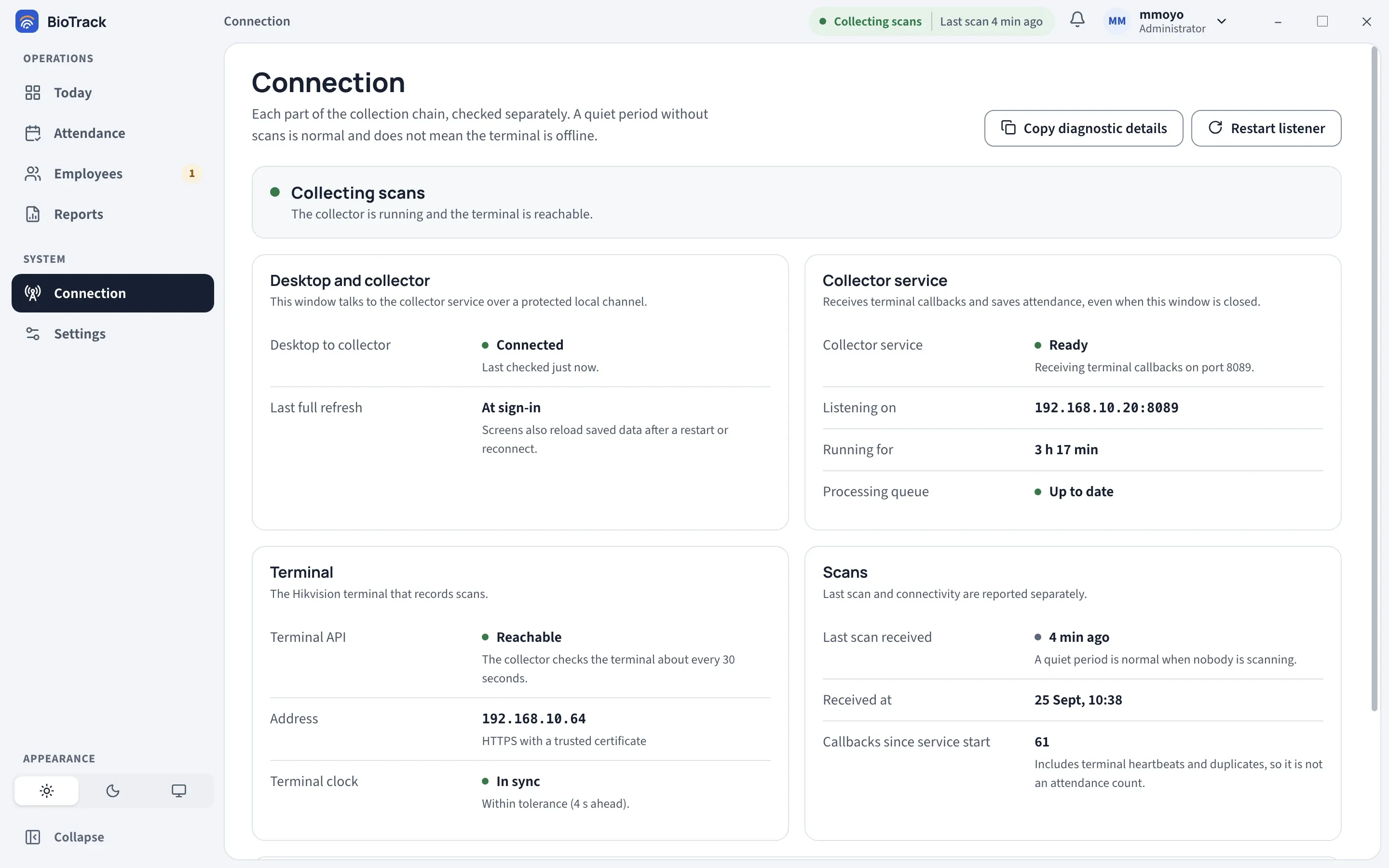
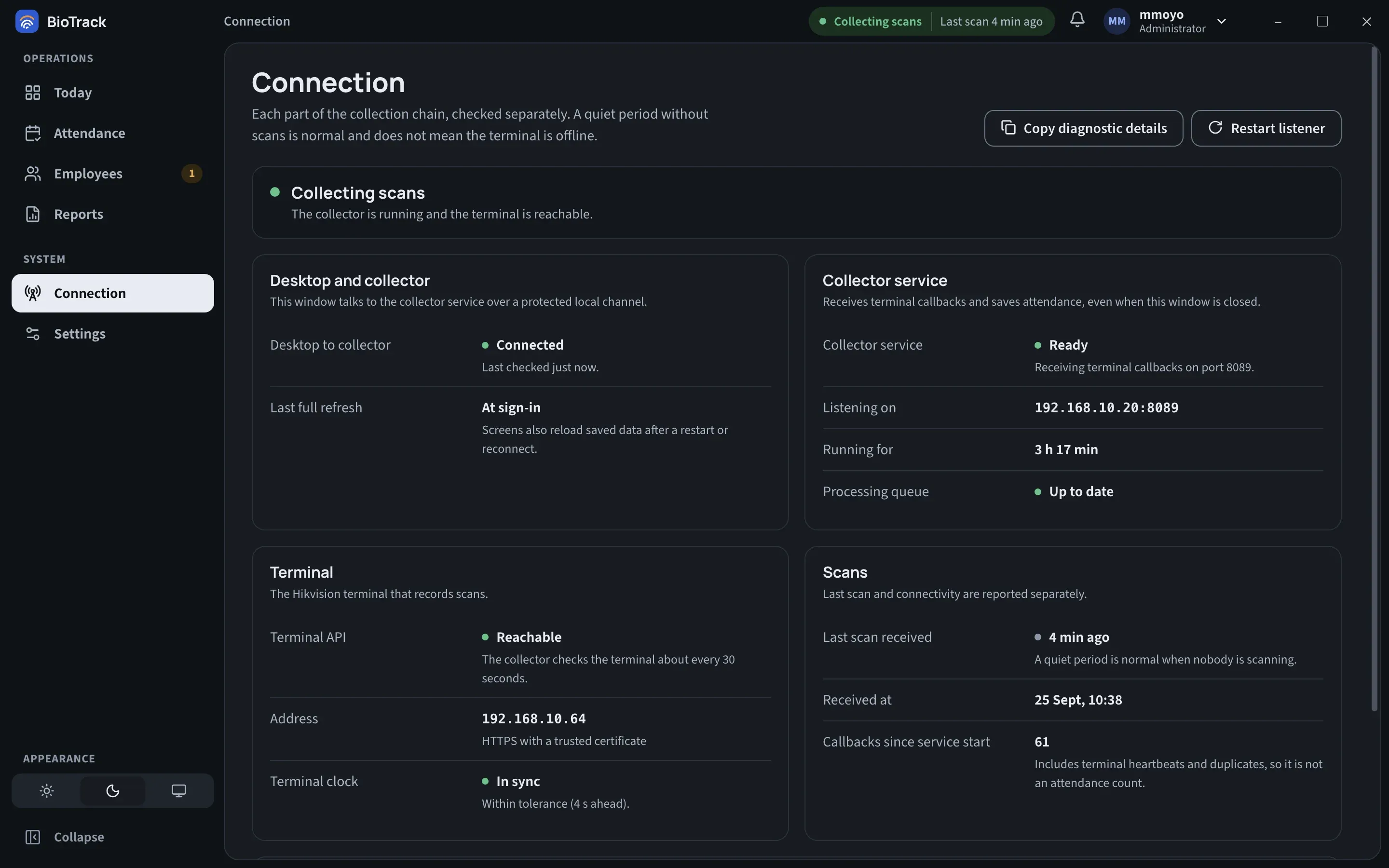
Connection checks each part of the collection chain separately, so you can see which link has failed. A quiet period without scans is normal and does not mean the terminal is offline.
The summary at the top gives one headline, such as Collecting scans, with a sentence explaining it. Below it:
| Card | What it shows |
|---|---|
| Desktop and collector | Desktop to collector: whether this window can reach the collector service over its protected local channel (Connected, Reconnecting, Unreachable). Last full refresh, and the Last error if the link is down. |
| Collector service | The service state (for example Ready, Listening, Applying settings, Degraded, Recovering, Maintenance, Stopped, Failed), Listening on (address and port), Running for, and Processing queue. Callbacks set aside for review are counted here. |
| Terminal | Terminal API (Reachable or Unreachable; the collector checks about every 30 seconds), the terminal Address and connection security, and Terminal clock. |
| Scans | Last scan received, Received at, and Callbacks since service start. The callback count includes heartbeats and duplicates, so it is not an attendance count. |
| Cloud reporting | Shown only when cloud reporting is set up. See Sync status. |
The Closing BioTrack panel is a reminder that closing or signing out of the window does not stop collection. Ending the collector entry in Task Manager does.
If you see The collector service is older than this desktop, run the BioTrack installer again so both parts are the same version.
Page actions
Section titled “Page actions”- Copy diagnostic details copies a short technical summary (versions, link and service state, listener, queue counts, clock offset, cloud state) to the clipboard. It contains no employee names. Paste it into a support request.
- Restart listener (administrators only) asks you to confirm, then restarts the attendance listener. The collector stops accepting terminal callbacks for a few seconds; the terminal retries scans it could not deliver.
Terminal clock warnings
Section titled “Terminal clock warnings”BioTrack measures the terminal clock from the timestamps of live scans, so it shows Not measured yet until scans arrive. It compares the terminal’s time with this PC over several recent scans:
| Value | Meaning |
|---|---|
| In sync | The terminal is within tolerance (less than 2 minutes out). |
| e.g. 3 min ahead (warning) | The terminal has been 2 minutes or more out across several scans. |
| e.g. 6 min ahead (critical) | 5 minutes or more out, or a single scan more than 5 minutes in the future. |
A clock warning means attendance times may be wrong. Check the date, time, time zone and NTP settings on the terminal itself, then watch for In sync after the next few scans.