
Backup and recovery
This page is for the administrator responsible for protecting BioTrack’s attendance data. BioTrack keeps two kinds of backup: automatic daily backups that stay on the PC, and portable backups that you create and store elsewhere.
Only a BioTrack administrator can create or restore backups.
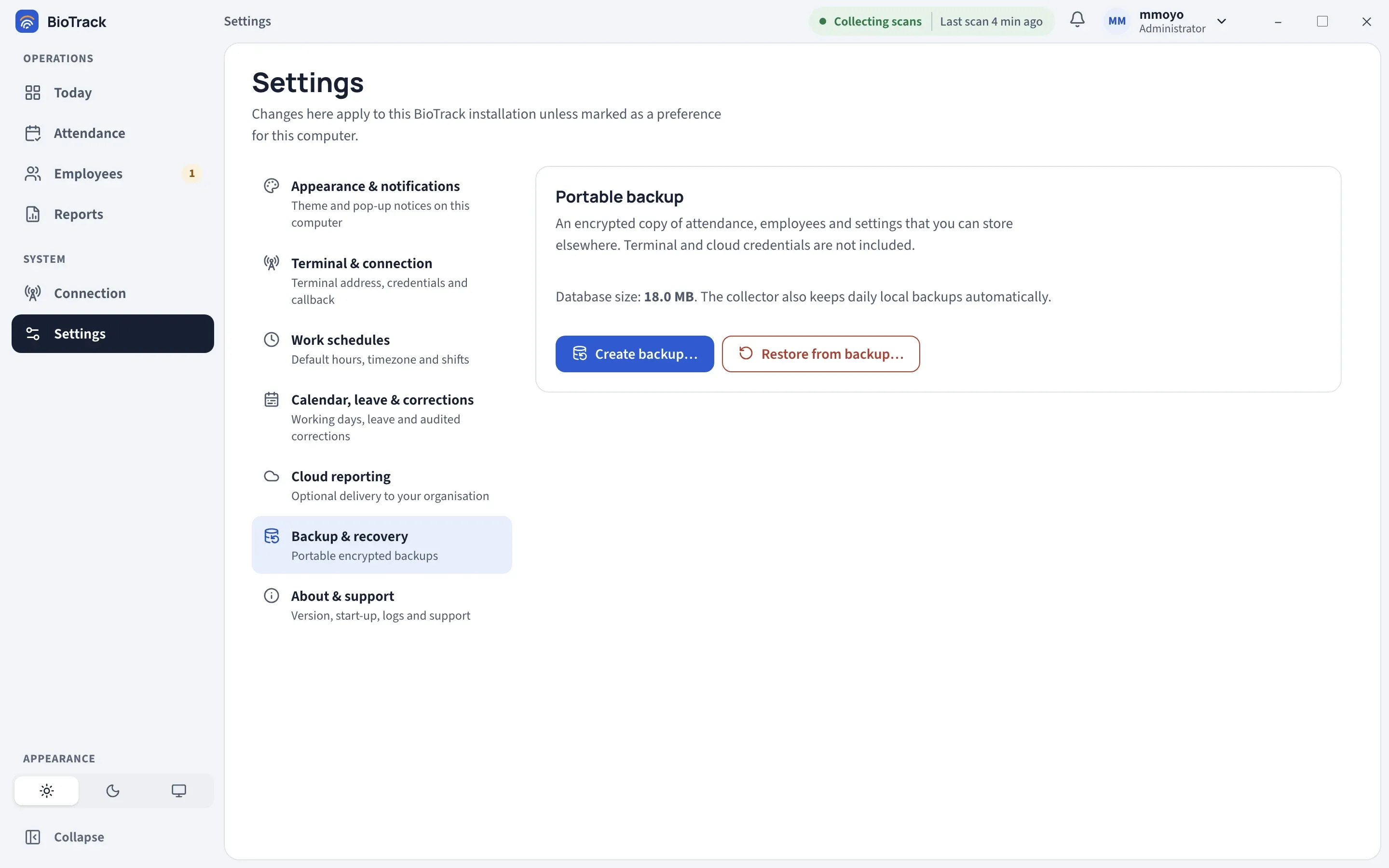
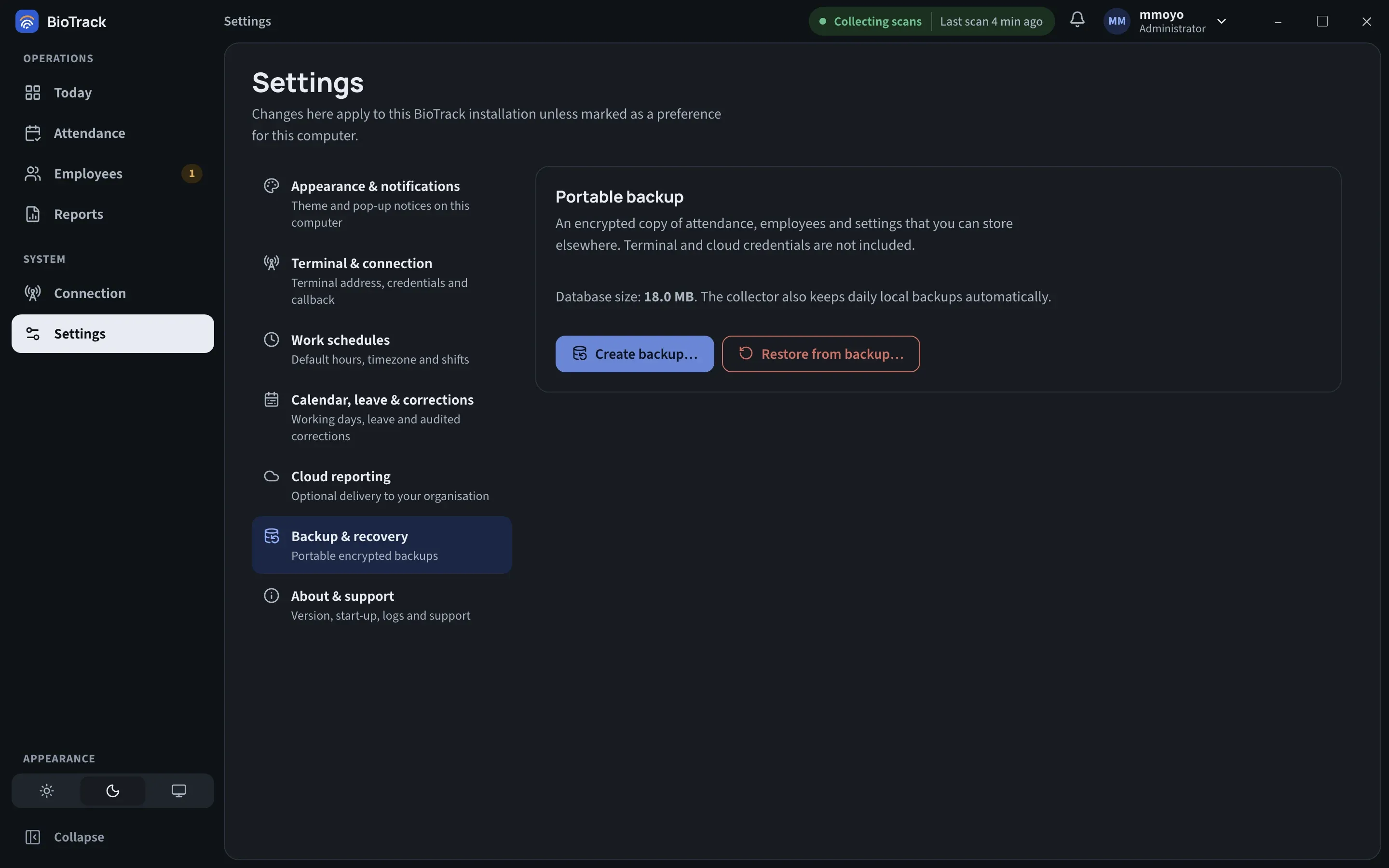
Automatic daily backups
Section titled “Automatic daily backups”The collector service makes one backup per business day without any action from you.
- Each backup is stored under
%ProgramData%\BioTrack\service\backupswith a manifest (checksum, schema and size). - It stays encrypted with the same key as the live database, and BioTrack reopens and checks it before keeping it.
- The latest 30 daily backups are kept.
- They include terminal and cloud credentials, because they are same-machine recovery points.
Portable backups
Section titled “Portable backups”A portable backup is an encrypted copy of attendance, employees and settings that you can store somewhere else and restore on this or another BioTrack installation.
- It is protected by a recovery passphrase that you choose. BioTrack derives a 256-bit key from it with Argon2id.
- It excludes terminal credentials, cloud credentials (including the cloud signing identity), setup-completion state and sign-in throttle state.
- It is saved as two files: the encrypted
.dband a.manifest.jsonbeside it. The manifest records the encryption settings, checksum, size, schema and exclusions, and is authenticated with a key derived from the passphrase.
Create a portable backup
Section titled “Create a portable backup”- Go to Settings → Backup & recovery and select Create backup….
- Enter a Recovery passphrase of at least 16 characters, and enter it again in Confirm recovery passphrase.
- Select Choose location and create and pick a folder.
- Wait for Backup created and verified. The saved path appears under Backup saved.
Then:
- Keep the
.dband.manifest.jsonfiles together and do not rename either one. - Store the passphrase separately from the files, through an approved channel such as your organisation’s password manager. BioTrack cannot recover a lost passphrase.
- Take a portable backup before every update and on a regular schedule that suits your organisation.
Restore from a portable backup
Section titled “Restore from a portable backup”A restore replaces all current BioTrack data with the backup.
- Go to Settings → Backup & recovery and select Restore from backup….
- Read the warning This replaces all current BioTrack data.
- Enter Your administrator password (the password of the BioTrack administrator you are signed in as).
- Enter the Backup recovery passphrase.
- Type
RESTOREin the confirmation box. - Select Choose backup and restore and pick the
.dbfile. Its.manifest.jsonmust be in the same folder.
BioTrack checks the manifest, file name, size, checksum, schema, exclusions and passphrase before it stops collection. If any check fails, nothing is changed and you see an error; current data is unchanged. If the checks pass, collection pauses, the backup is restored, and BioTrack restarts and signs everyone out.
After a restore
Section titled “After a restore”- Sign in with a BioTrack administrator account from the restored backup.
- Enter the terminal password again in Settings → Terminal & connection and select Test connection. See Terminal and connection.
- If you use cloud reporting, reconnect it in Settings → Cloud reporting. See Connect and activate.
- Make a real scan on the terminal and check it appears on Today.
If the database key is lost
Section titled “If the database key is lost”The database and daily backups are encrypted with a key stored at %ProgramData%\BioTrack\attendance.db.key, protected by Windows for this machine. If that file is lost or damaged, the database and the daily backups cannot be opened. BioTrack deliberately does not create a replacement key next to an existing encrypted database.
Your only route back is a portable backup and its recovery passphrase. If neither is usable, stop, do not delete anything, keep the files, and contact support.