
Connect and activate cloud reporting
This page walks a BioTrack administrator through turning on cloud reporting for one installation. You need a local BioTrack Administrator account, the cloud address from your commissioner, and a one-time activation code.
Before you start
Section titled “Before you start”- Sign in as an administrator. Other users can see Settings → Cloud reporting but cannot change it.
- Get the cloud API address from your commissioner. It is an HTTPS address such as
https://sync.example.com. - Arrange to receive an activation code. Your commissioner creates it for your organisation and site. It is valid for one use only and expires, usually after 24 hours and never later than seven days.
Connect and activate
Section titled “Connect and activate”-
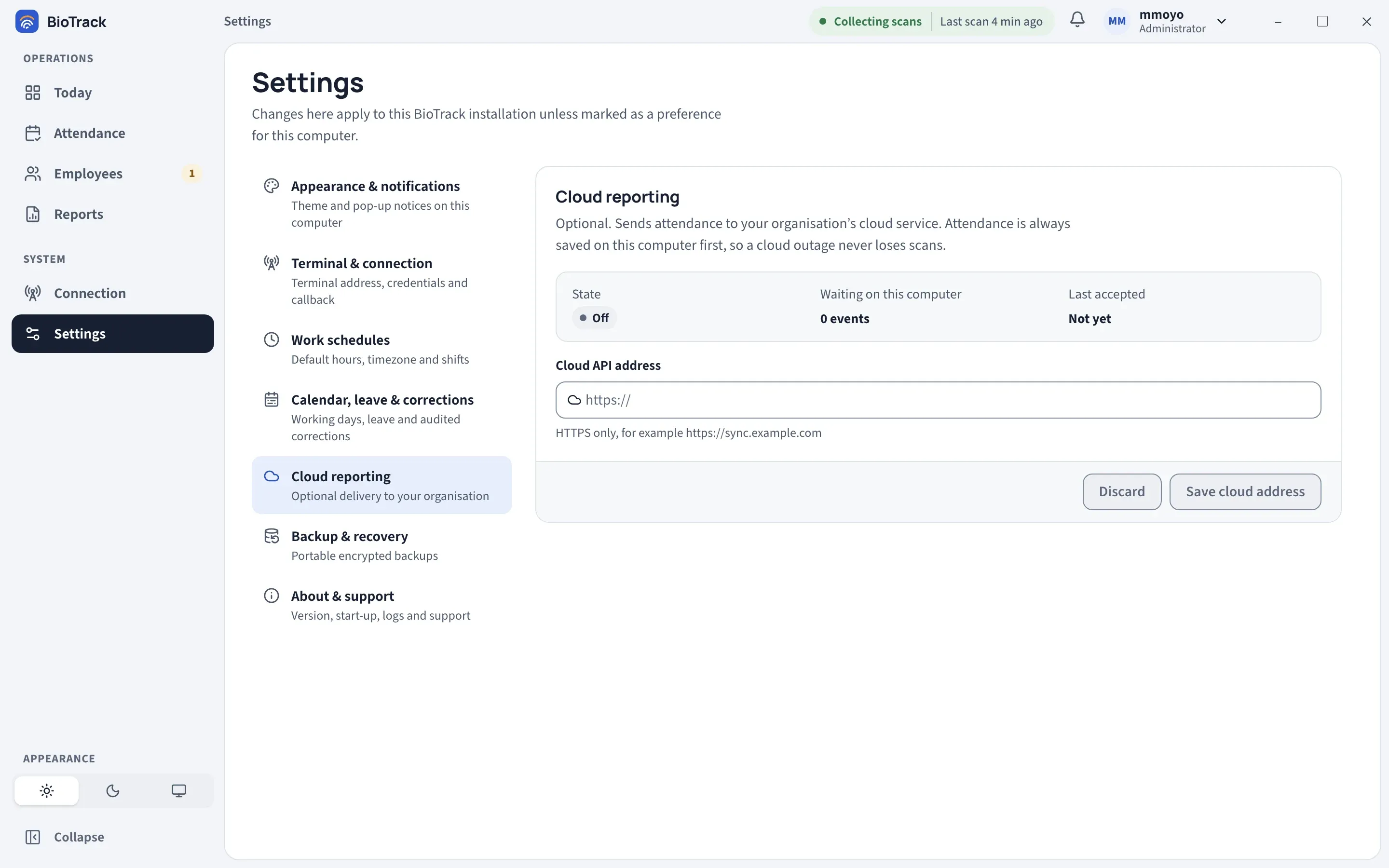
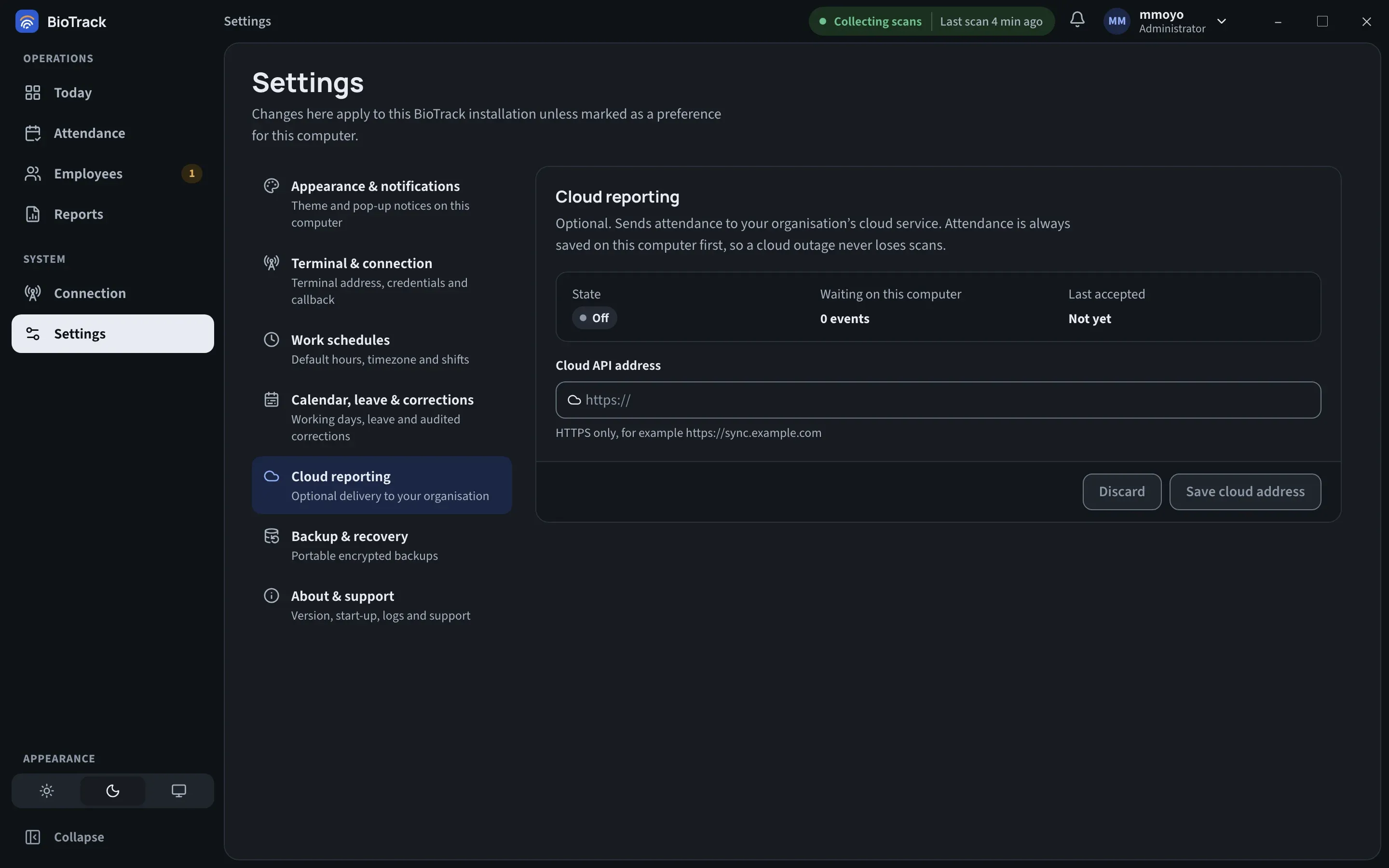
Open Settings → Cloud reporting.
-
In Cloud API address, enter the address from your commissioner, for example
https://sync.example.com.BioTrack accepts an HTTPS address only. It must be just the address: no path after the domain name, no
?or#parts, and no user name or password in it. -
Select Save cloud address.
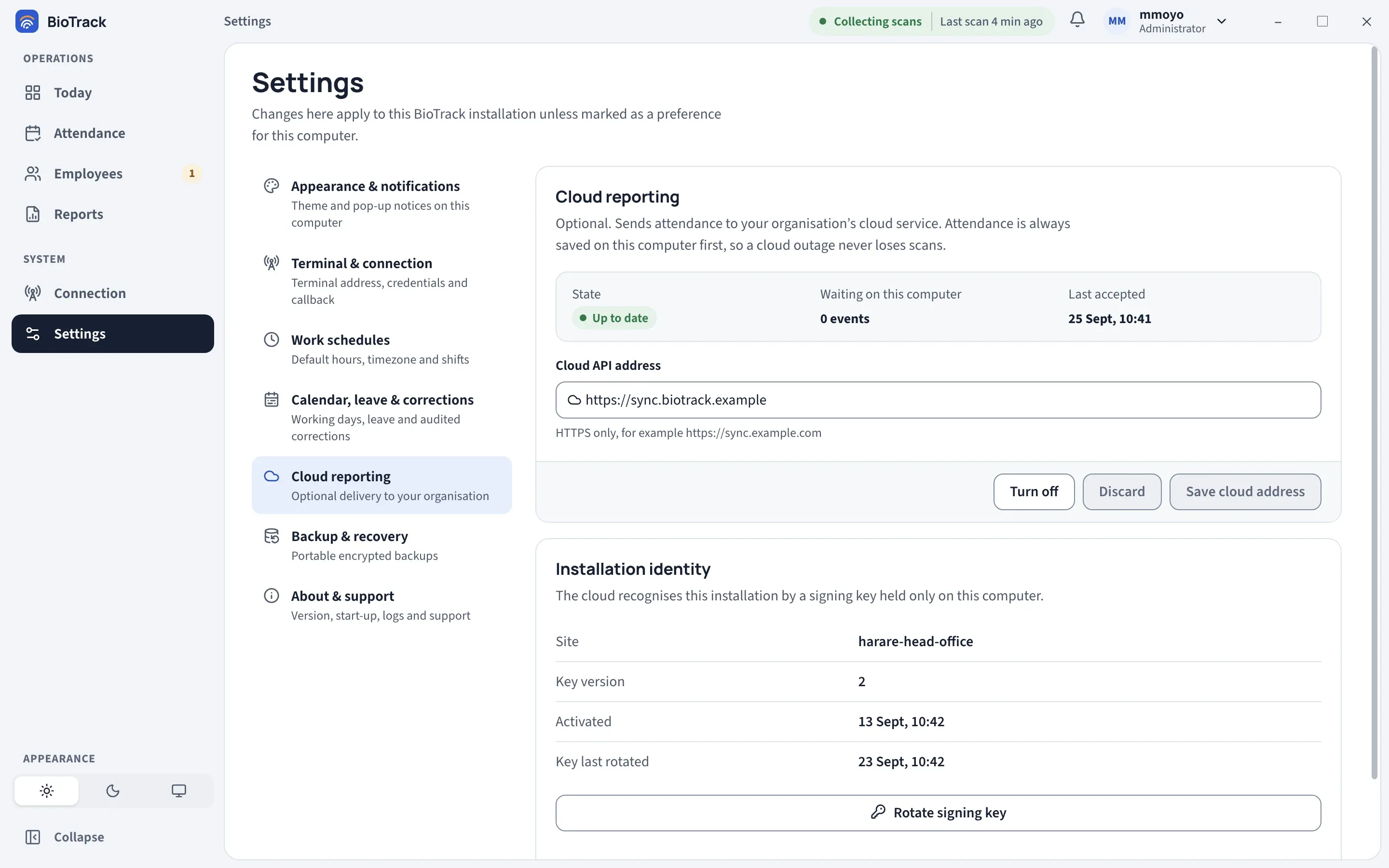
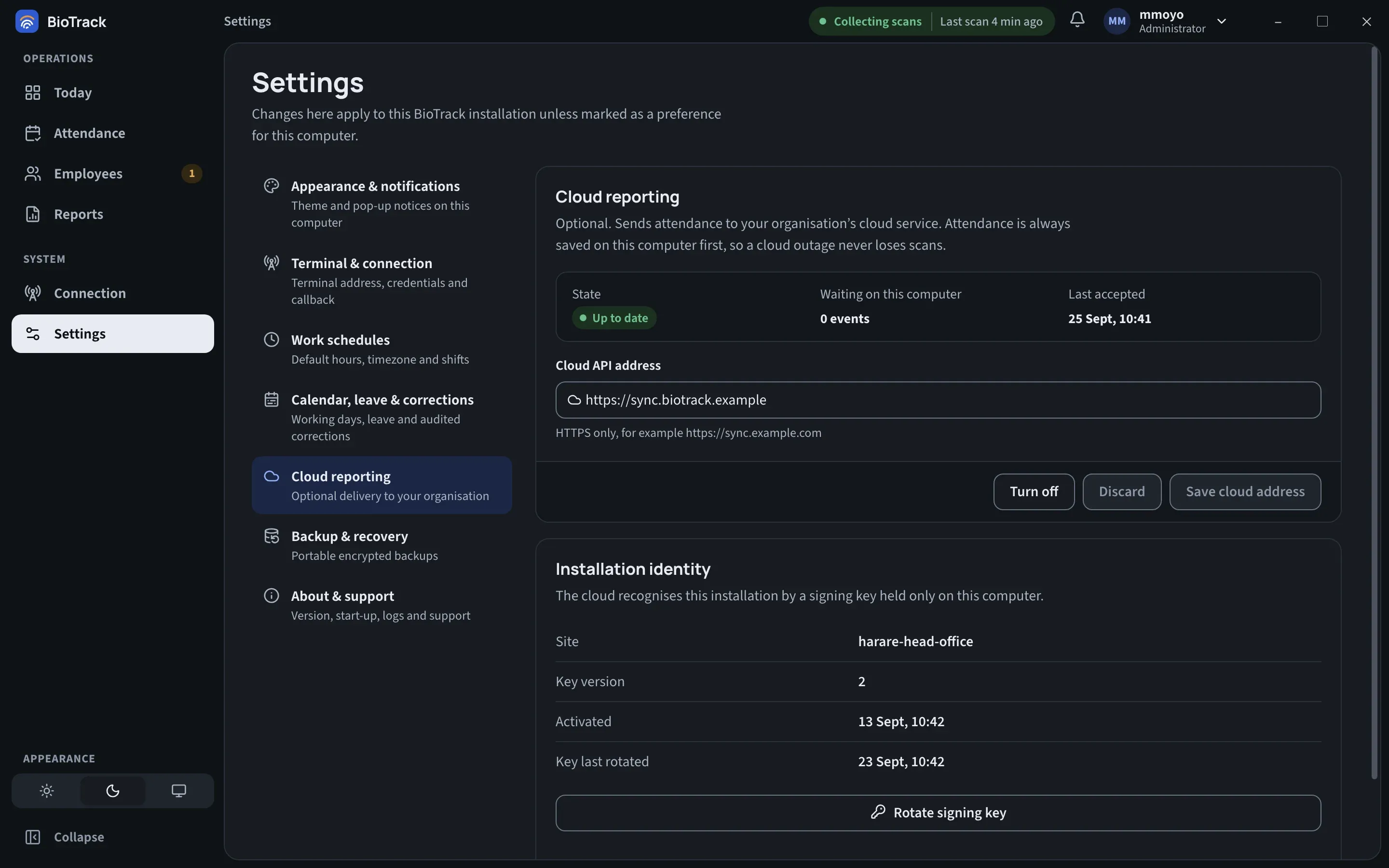
BioTrack confirms with Cloud address saved. Activate the installation before uploads begin. At this point it also creates this installation’s signing key, if it does not have one yet. A new Installation identity section appears below.
-
Wait for the activation code from your commissioner.
-
In Installation identity, enter the code in the One-time activation code field. The code is 43 characters long. Activate stays unavailable until the full code is entered and the address change is saved.
-
Select Activate.
When it succeeds, BioTrack shows Installation activated. Cloud delivery can begin.
-
Check the Installation identity section. It now lists:
Item Meaning Site The site your commissioner registered this installation to. Key version Starts at 1 and goes up each time the signing key is rotated. Activated When activation completed. Key last rotated Appears only after the first key rotation. Confirm the site with your commissioner. The organisation and site come from the activation code, so if the site is wrong, stop and tell your commissioner before any data is sent.
-
Watch the transmission strip at the top of the page. Within a minute or so, Waiting on this computer should start to fall and Last accepted should show a time. See Sync status.
If activation fails
Section titled “If activation fails”| Message | What to do |
|---|---|
| Activation code is invalid, expired, or used | Ask your commissioner for a new code. For security, the cloud gives the same answer whether a code is wrong, expired or already used. |
| This installation identity is already registered | This computer is already registered with the cloud service. Contact your commissioner before trying anything else. |
| Cloud activation returned HTTP … | The cloud service could not complete the request. Check the address and the internet connection, then try again or contact your commissioner. |
Errors appear under the address field as Cloud change not saved, followed by the reason.
Until the installation is activated, the transmission strip may show Retrying. This is expected: nothing is lost, and delivery starts after activation.
The public enrollment identity
Section titled “The public enrollment identity”Once an address is saved, the Installation identity section includes a collapsed entry, Public enrollment identity (for manual commissioning or support). It shows this installation’s ID and its public key. Neither is secret. Your commissioner may ask for the installation ID, for example to revoke a retired computer. The private key is never shown and never leaves this computer.
Turn cloud reporting off
Section titled “Turn cloud reporting off”- Open Settings → Cloud reporting.
- Select Turn off.
BioTrack confirms with Cloud reporting turned off. Waiting events stay stored on this computer. Delivery stops and the state changes to Off.
Turning off removes only the cloud address. It does not delete anything on this computer, and it does not remove the installation’s registration in the cloud. Records continue to collect in the outbox. If you save the same address again later, delivery resumes with the existing identity and catches up on the backlog.
To stop a computer from ever sending again, for example when it is retired or lost, your commissioner revokes it in the cloud. See Commissioning the cloud service.
Backups and moving to another computer
Section titled “Backups and moving to another computer”Portable backups do not include the cloud address or the installation’s signing keys. If you restore a portable backup on a different computer, cloud reporting starts off and the restored installation has no signing key, so it cannot reuse the original registration. Speak to your commissioner before connecting it. See Backup and recovery.