
Calendar, leave and corrections
This page explains how to tell BioTrack which days people are expected to work, who is on leave, and how to fix a day’s attendance when a scan was missed. All of this is under Settings → Calendar, leave & corrections, which only administrators can see.
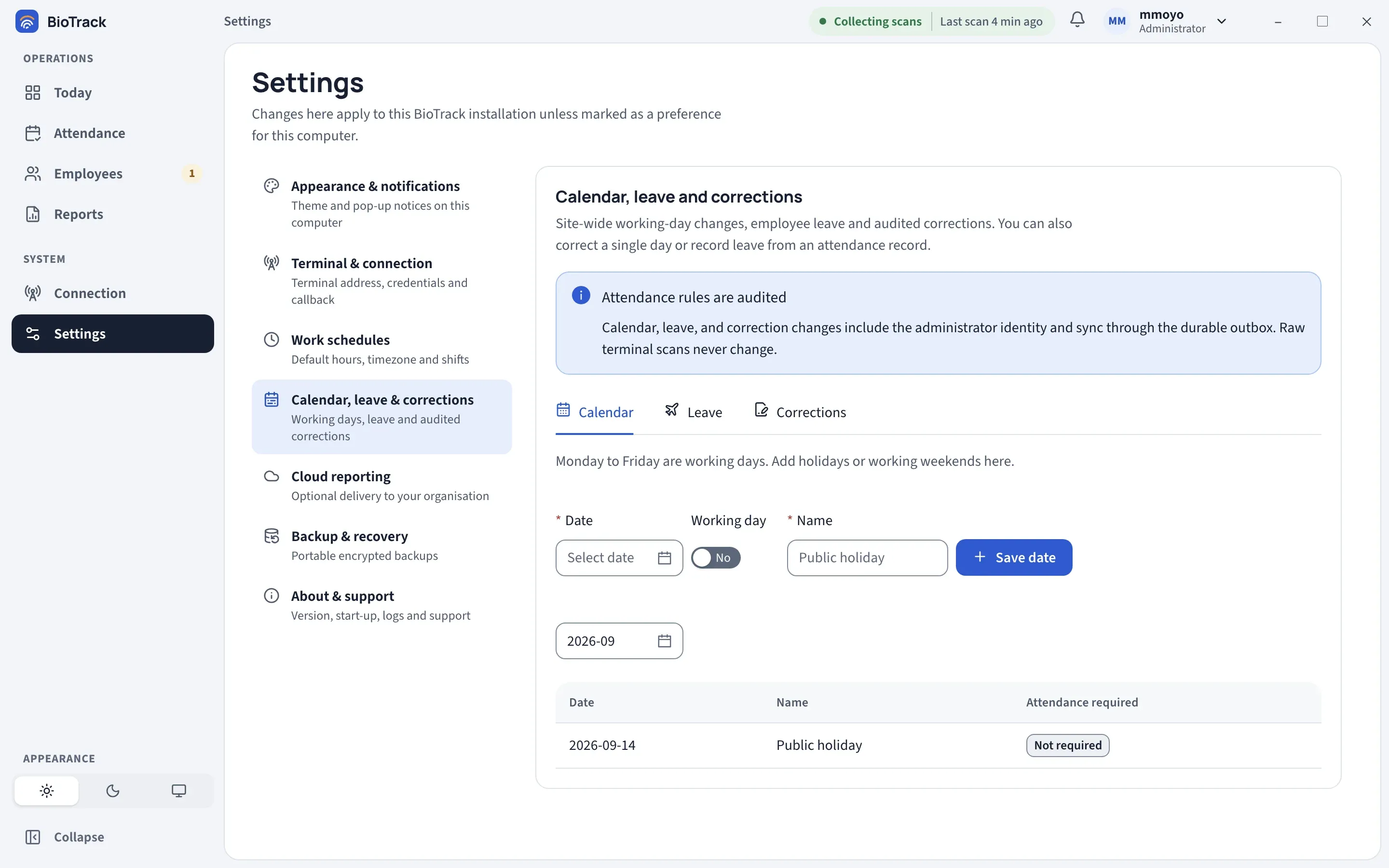
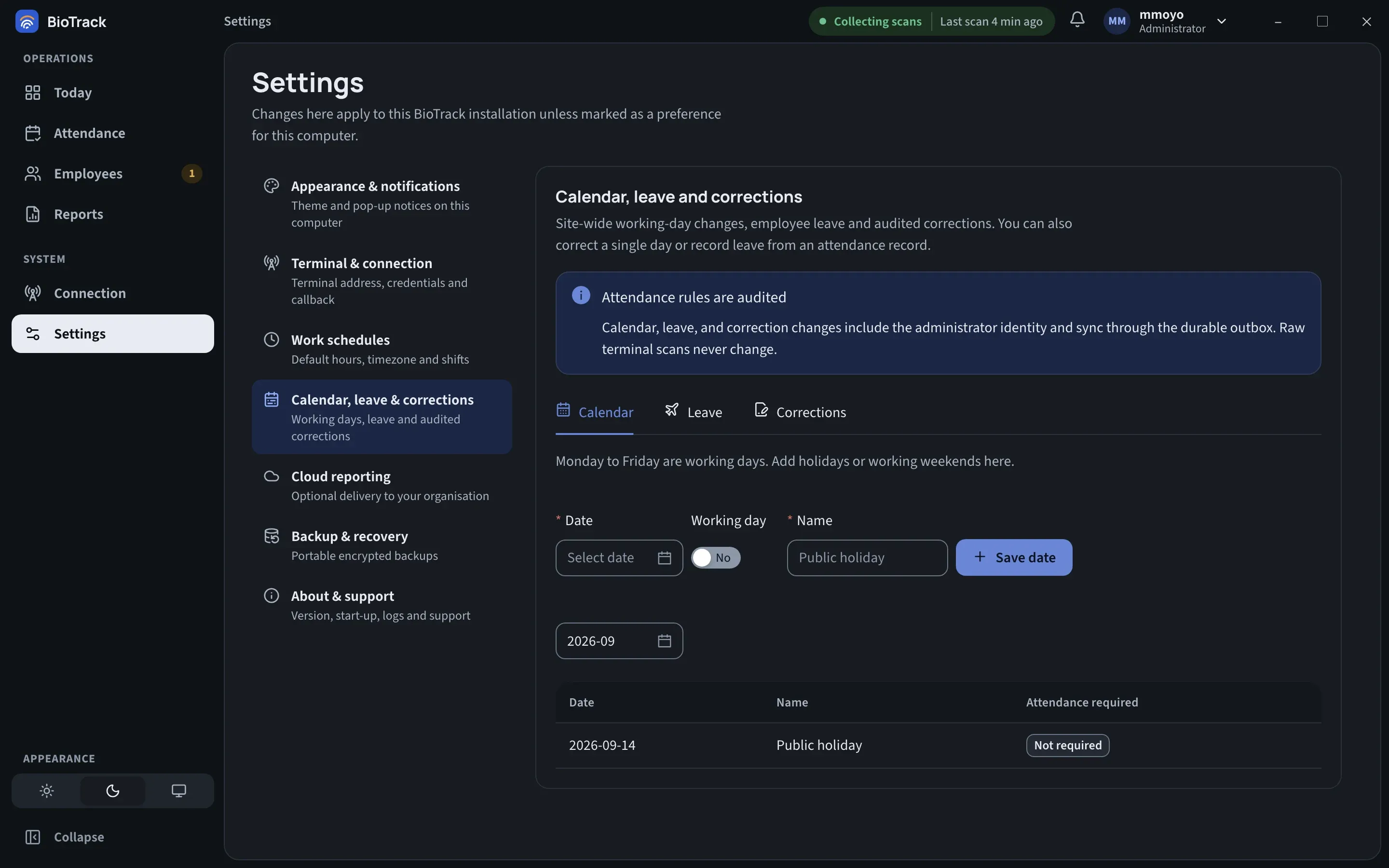
Every change is audited
Section titled “Every change is audited”Each calendar change, leave record and correction is saved with the name of the administrator who made it. Corrections and leave revocations also need a reason.
The section has three tabs: Calendar, Leave and Corrections.
Calendar
Section titled “Calendar”Monday to Friday are working days. Use this tab to add exceptions:
- a holiday — a weekday when attendance is not required, or
- a working weekend — a Saturday or Sunday when attendance is required.
- Choose the Date.
- Set Working day to No for a holiday or Yes for a working weekend day.
- Enter a Name, for example “Public holiday” or “Stocktake Saturday”. This name appears on the Attendance page and in the record panel.
- Select Save date.
Saving a date that already has an entry replaces it. Use the month selector above the table to see the changes for a month; the Attendance required column shows Required or Not required.
On a holiday or weekend, employees are shown as Holiday (or the name you gave, or Weekend) instead of absent, and the day does not count towards Working days or absences in reports. Anyone who does scan on such a day still has their scans saved and their day recorded.
- Choose the Employee.
- Choose the Leave dates (first and last day).
- Enter the Leave type, for example “Annual leave” or “Sick leave”.
- Add a Note (optional).
- Select Record leave.
Days on leave are not counted as absences. On the Attendance page the person shows as On leave (or the leave type). Leave only matters on working days; holidays and weekends inside the range are already not required.
You can also record leave straight from an attendance record with Record leave. See Attendance.
Checking and revoking leave
Section titled “Checking and revoking leave”Choose an employee in the selector below the form to list their leave, with Start, End, Type and Status (Active or Revoked).
To cancel leave that was recorded by mistake, select Revoke leave, enter a reason of at least 5 characters and confirm. The employee will be expected to attend on those dates again. The leave record is kept, marked Revoked, so the history is not lost.
Corrections
Section titled “Corrections”Use a correction when the saved scans do not reflect what happened, for example the terminal was offline or someone forgot to scan and a supervisor confirmed their times.
- Choose the Employee and the Business date (the attendance day).
- Enter the Check-in time and Check-out time in site-local time. Leave the check-out time blank if there was only one scan. Leave both blank to record an absence.
- Enter a Reason of at least 5 characters.
- Select Save correction.
BioTrack works out the status again from the corrected times and the employee’s schedule, so a corrected check-in can still be late. Every correction keeps the previous and corrected values.
The quickest way to correct one day is usually from the attendance record itself, with Correct attendance, because you can see the saved scans next to the form. See Correcting a day.
Correction history
Section titled “Correction history”Choose an employee next to Correction history to list every correction for them, with Business date, Administrator, Reason and Corrected at. The attendance record panel shows the same history for a single day, including the times before and after.